<?xml version="1.0" encoding="utf-8"?><feed xmlns="http://www.w3.org/2005/Atom" ><generator uri="https://jekyllrb.com/" version="3.10.0">Jekyll</generator><link href="https://www.codingthepast.com/feed.xml" rel="self" type="application/atom+xml" /><link href="https://www.codingthepast.com/" rel="alternate" type="text/html" /><updated>2026-04-16T20:01:04+00:00</updated><id>https://www.codingthepast.com/feed.xml</id><title type="html">coding-the-past</title><entry><title type="html">Exploring the MET API with Python - Francisco Goya’s Artworks</title><link href="https://www.codingthepast.com/2026/04/16/met-api-with-python.html" rel="alternate" type="text/html" title="Exploring the MET API with Python - Francisco Goya’s Artworks" /><published>2026-04-16T00:00:00+00:00</published><updated>2026-04-16T00:00:00+00:00</updated><id>https://www.codingthepast.com/2026/04/16/met-api-with-python</id><content type="html" xml:base="https://www.codingthepast.com/2026/04/16/met-api-with-python.html"><![CDATA[<p><em>The act of painting is about one heart telling another heart where he found salvation.</em></p>

<p>— Francisco Goya</p>

<p><br /></p>

<p>Francisco Goya is one of my favorite artists. His work has a beautiful darkness that tells a lot about his experience in his time. In this post, we’ll dive into his world using the Metropolitan Museum of Art (MET) application programming interface (API), which gives developers access to data on hundreds of thousands of artworks.</p>

<p><br /></p>

<p>You will learn how to interact with the MET API using Python. We will journey through the process of making HTTP requests, parsing the returned JSON data into a structured <code class="language-plaintext highlighter-rouge">pandas</code> DataFrame, and exploring the collection to extract meaningful insights about Goya’s work.</p>

<p><br /></p>

<h2 id="1-requesting-data-from-the-api">1. Requesting data from the API</h2>

<p><br /></p>

<p>We begin by importing the <code class="language-plaintext highlighter-rouge">requests</code> library, which allows us to send HTTP requests to the MET REST API in Python. We’ll query the <code class="language-plaintext highlighter-rouge">search</code> endpoint to find Goya’s paintings. In API terms, an endpoint is a specific URL used to access a particular resource.</p>

<p><br /></p>

<p>The MET API has four endpoints starting with “https://collectionapi.metmuseum.org/”:</p>
<ul class="conclusion-list">
  <li>GET /public/collection/v1/objects returns a listing of all valid <code class="language-plaintext highlighter-rouge">objectID</code> available to use.</li>
  <li>GET /public/collection/v1/objects/[objectID] returns a record for an object, containing all open access data about that object, including its image (if the image is available under Open Access).</li>
  <li>GET /public/collection/v1/departments returns a listing of all departments of the museum.</li>
  <li>GET /public/collection/v1/search returns a listing of all <code class="language-plaintext highlighter-rouge">objectID</code> for objects that match the search query.</li>
</ul>

<p><br /></p>

<p>You can find more details about each endpoint and its functionality in the <a href="https://metmuseum.github.io/">official MET API documentation</a>.</p>

<div class="text-note-minimal">
    <span class="material-symbols-outlined">
        tips_and_updates
    </span>
    <span class="text-note-title">&nbsp; </span> 
    <div class="text-note-content"> A REST (Representational State Transfer) API is a set of rules used to communicate between your computer and the MET server using HTTP methods and endpoints. Note that many APIs require authentication; however, the MET API is public and does not require an API key.
        
    </div>
</div>

<p><br /></p>

<p><span class="material-symbols-outlined" id="copy-button" onclick="copyCode('code-31-1')">
  content_copy
  <span class="tooltiptext">Copy</span>
</span></p>

<div id="code-31-1">

<figure class="highlight"><pre><code class="language-python" data-lang="python"><span class="kn">import</span> <span class="nn">requests</span>
<span class="kn">import</span> <span class="nn">pandas</span> <span class="k">as</span> <span class="n">pd</span>

<span class="n">search_query</span> <span class="o">=</span> <span class="s">"https://collectionapi.metmuseum.org/public/collection/v1/search?hasImages=true&amp;q=Francisco Goya"</span>

<span class="n">response</span> <span class="o">=</span> <span class="n">requests</span><span class="p">.</span><span class="n">get</span><span class="p">(</span><span class="n">search_query</span><span class="p">)</span>
<span class="n">search_data</span> <span class="o">=</span> <span class="n">response</span><span class="p">.</span><span class="n">json</span><span class="p">()</span>

<span class="k">print</span><span class="p">(</span><span class="sa">f</span><span class="s">"Found </span><span class="si">{</span><span class="n">search_data</span><span class="p">[</span><span class="s">'total'</span><span class="p">]</span><span class="si">}</span><span class="s"> artworks for Francisco Goya."</span><span class="p">)</span></code></pre></figure>

</div>

<p><br /></p>

<p>API endpoints can be followed by query parameters that refine our search. In the example above, <code class="language-plaintext highlighter-rouge">hasImages=true</code> filters for objects with images, and <code class="language-plaintext highlighter-rouge">q</code> specifies our search term—in this case, the artist’s name.</p>

<p><br /></p>

<p>The <code class="language-plaintext highlighter-rouge">requests</code> library contains a method called <code class="language-plaintext highlighter-rouge">get()</code>, which we use to send our request to the API, passing our endpoint saved in the string <code class="language-plaintext highlighter-rouge">search_query</code>.</p>

<p><br /></p>

<p>The resulting <code class="language-plaintext highlighter-rouge">response</code> object can then be parsed into a JSON structure using the <code class="language-plaintext highlighter-rouge">.json()</code> method.</p>

<p><br /></p>

<h2 id="2-converting-json-to-a-list-of-painting-ids">2. Converting JSON to a list of painting ids</h2>

<p><br /></p>

<p>While JSON is the standard for data exchange, working with raw JSON can be cumbersome for direct data analysis. In Python, you can think of JSON as a dictionary of keys and values. These values can themselves be other dictionaries, lists, numbers, strings, or booleans. By printing the <code class="language-plaintext highlighter-rouge">search_data</code> object, we can see that it’s a dictionary containing two main keys:</p>
<ul class="conclusion-list">
  <li><strong>total</strong>: An integer representing the total number of objects returned.</li>
  <li><strong>objectIDs</strong>: A list containing the unique IDs of the artworks matching our search.</li>
</ul>

<p><br /></p>

<p>To retrieve the list of IDs associated with the key “objectIDs” we use the standard dictionary notation <code class="language-plaintext highlighter-rouge">search_data["objectIDs"]</code> and save it to the variable <code class="language-plaintext highlighter-rouge">goya_ids</code>.</p>

<p><br /></p>

<p><span class="material-symbols-outlined" id="copy-button" onclick="copyCode('code-31-2')">
  content_copy
  <span class="tooltiptext">Copy</span>
</span></p>
<div id="code-31-2">

<figure class="highlight"><pre><code class="language-python" data-lang="python"><span class="k">print</span><span class="p">(</span><span class="n">search_data</span><span class="p">)</span>
<span class="n">goya_ids</span> <span class="o">=</span> <span class="n">search_data</span><span class="p">[</span><span class="s">"objectIDs"</span><span class="p">]</span></code></pre></figure>

</div>

<p><br /></p>

<h2 id="3-getting-the-details-of-each-of-goyas-works">3. Getting the details of each of Goya’s works</h2>

<p><br /></p>

<p>To retrieve details for each artwork — such as its title, date, and thematic tags — we need to iterate through the list of IDs and send a request to the <code class="language-plaintext highlighter-rouge">/objects/{objectID}</code> endpoint for each item. We implement this using a for loop that repeats the request for each artwork.</p>

<p><br /></p>

<p><em>(Note: Depending on the number of results, fetching these details can take a few minutes. We use <code class="language-plaintext highlighter-rouge">time.sleep(1)</code> to respect the API’s rate limits and avoid being blocked.)</em></p>

<p><br /></p>

<p><span class="material-symbols-outlined" id="copy-button" onclick="copyCode('code-31-3')">
  content_copy
  <span class="tooltiptext">Copy</span>
</span></p>

<div id="code-31-3">

<figure class="highlight"><pre><code class="language-python" data-lang="python"><span class="kn">import</span> <span class="nn">time</span>

<span class="n">all_objects_data</span> <span class="o">=</span> <span class="p">[]</span>


<span class="k">for</span> <span class="n">object_id</span> <span class="ow">in</span> <span class="n">goya_ids</span><span class="p">:</span>
    <span class="k">try</span><span class="p">:</span>
        <span class="n">obj_response</span> <span class="o">=</span> <span class="n">requests</span><span class="p">.</span><span class="n">get</span><span class="p">(</span><span class="sa">f</span><span class="s">"https://collectionapi.metmuseum.org/public/collection/v1/objects/</span><span class="si">{</span><span class="n">object_id</span><span class="si">}</span><span class="s">"</span><span class="p">)</span>
        <span class="n">obj_response</span><span class="p">.</span><span class="n">raise_for_status</span><span class="p">()</span> 
        <span class="n">all_objects_data</span><span class="p">.</span><span class="n">append</span><span class="p">(</span><span class="n">obj_response</span><span class="p">.</span><span class="n">json</span><span class="p">())</span>
    <span class="k">except</span> <span class="n">requests</span><span class="p">.</span><span class="n">exceptions</span><span class="p">.</span><span class="n">RequestException</span> <span class="k">as</span> <span class="n">e</span><span class="p">:</span>
        <span class="k">print</span><span class="p">(</span><span class="sa">f</span><span class="s">"Error for object ID </span><span class="si">{</span><span class="n">object_id</span><span class="si">}</span><span class="s">: </span><span class="si">{</span><span class="n">e</span><span class="si">}</span><span class="s">"</span><span class="p">)</span>
    
    <span class="n">time</span><span class="p">.</span><span class="n">sleep</span><span class="p">(</span><span class="mi">1</span><span class="p">)</span> <span class="c1"># Respect the API, one request per second to be safe
</span>
<span class="c1"># Convert the gathered data to a DataFrame
</span><span class="n">goya_df</span> <span class="o">=</span> <span class="n">pd</span><span class="p">.</span><span class="n">json_normalize</span><span class="p">(</span><span class="n">all_objects_data</span><span class="p">)</span>

<span class="c1"># Filter only Goya works
</span><span class="n">goya_df</span> <span class="o">=</span> <span class="n">goya_df</span><span class="p">[</span><span class="n">goya_df</span><span class="p">[</span><span class="s">'artistDisplayName'</span><span class="p">].</span><span class="nb">str</span><span class="p">.</span><span class="n">contains</span><span class="p">(</span><span class="s">'Goya'</span><span class="p">,</span> <span class="n">na</span><span class="o">=</span><span class="bp">False</span><span class="p">)]</span></code></pre></figure>

</div>

<p><br /></p>

<p>We use a <code class="language-plaintext highlighter-rouge">try-except</code> block to ensure the loop continues even if a specific object ID fails to load. We also log any errors to help with debugging.</p>

<p><br /></p>

<p>Finally, we convert the collected data into a Pandas DataFrame using <code class="language-plaintext highlighter-rouge">pd.json_normalize</code>. Since a broad search might return works <em>about</em> Goya or mentioning him in metadata, we filter the DataFrame to ensure the <code class="language-plaintext highlighter-rouge">artistDisplayName</code> actually contains “Goya.”</p>

<p><br /></p>

<p>The resulting DataFrame contains intriguing data about each of his works, including name, year when the painting or drawing was started and finished, descriptive tags and dimensions, among other information. Feel free to explore it. We will continue working with the descriptive tags in the next steps.</p>

<p><br /></p>

<h2 id="4-flattening-nested-json-data">4. Flattening nested JSON data</h2>

<p><br /></p>

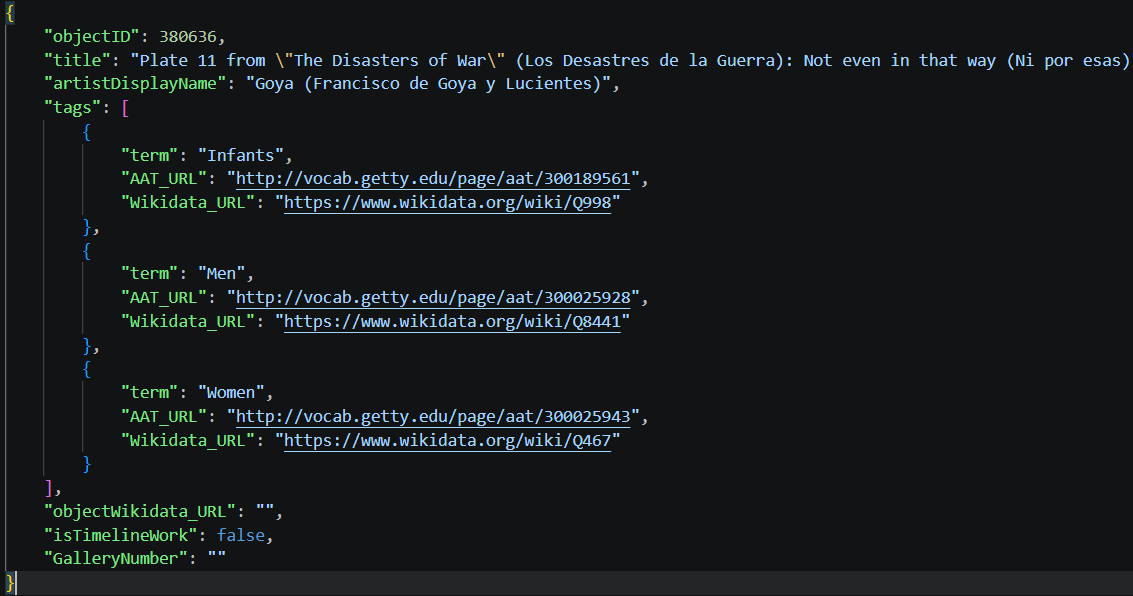
<p>For keys whose values are lists or other dictionaries, the resulting columns will contain those respective objects. This happens, for example, with the <code class="language-plaintext highlighter-rouge">tags</code> column. When you have nested elements like this, you can “flatten” them into a tabular format.</p>

<p><br /></p>

<div class="new-image">
  <div class="card">
    <img src="/assets/images/lesson_31_01.png" alt="JSON structure" style="max-width:100%; height:auto; display:block; margin:0 auto;" />
    <p style="text-align: center; font-size: 0.7em; color: grey;">JSON data structure</p>
  </div>
</div>

<p><br /></p>

<p>Flattening an element changes the granularity of the data. Whereas before each row represented a single artwork, in the flattened table each row represents an individual tag belonging to one artwork.</p>

<p><br /></p>

<p>To flatten these nested tags, we can use <code class="language-plaintext highlighter-rouge">json_normalize</code> by specifying the element to unnest in the <code class="language-plaintext highlighter-rouge">record_path</code>. We also include the <code class="language-plaintext highlighter-rouge">objectID</code> in the <code class="language-plaintext highlighter-rouge">meta</code> parameter so we don’t lose the relationship between a tag and its original artwork. Later on, we can join this tags table back to our main DataFrame if we want.</p>

<p><br /></p>

<p><span class="material-symbols-outlined" id="copy-button" onclick="copyCode('code-31-4')">
  content_copy
  <span class="tooltiptext">Copy</span>
</span></p>

<div id="code-31-4">

<figure class="highlight"><pre><code class="language-python" data-lang="python"><span class="n">tags_df</span> <span class="o">=</span> <span class="n">pd</span><span class="p">.</span><span class="n">json_normalize</span><span class="p">(</span>
    <span class="n">all_objects_data</span><span class="p">,</span>
    <span class="n">record_path</span><span class="o">=</span><span class="s">'tags'</span><span class="p">,</span>
    <span class="n">meta</span><span class="o">=</span><span class="p">[</span><span class="s">'objectID'</span><span class="p">]</span>
<span class="p">)</span></code></pre></figure>

</div>

<p><br /></p>

<h2 id="5-visualizing-the-most-frequent-themes">5. Visualizing the most frequent themes</h2>

<p><br /></p>

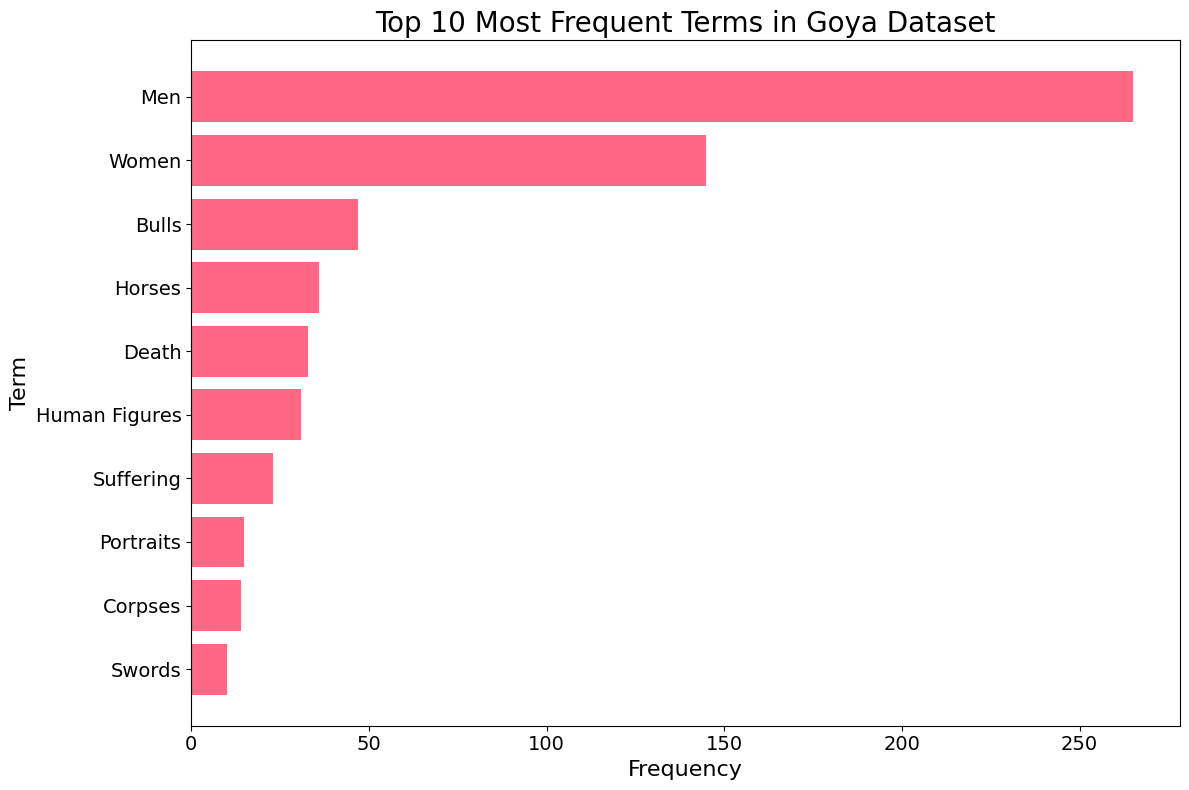
<p>The MET API provides a <code class="language-plaintext highlighter-rouge">tags</code> field containing descriptive terms associated with each artwork. To understand the prevailing themes in Goya’s works — famous for documenting the social upheaval and dark realities of his era — we can extract these terms and calculate their frequency.</p>

<p><br /></p>

<p>Once we isolate the individual tags into a new column, we can use <code class="language-plaintext highlighter-rouge">matplotlib</code> to create a horizontal bar plot of the top 10 terms and check if indeed his artwork contained themes related to death and misery.</p>

<p><br /></p>

<p><span class="material-symbols-outlined" id="copy-button" onclick="copyCode('code-1-5')">
  content_copy
  <span class="tooltiptext">Copy</span>
</span></p>
<div id="code-1-5">

<figure class="highlight"><pre><code class="language-python" data-lang="python"><span class="kn">import</span> <span class="nn">matplotlib.pyplot</span> <span class="k">as</span> <span class="n">plt</span>

<span class="c1"># Calculate the frequency of each term for the filtered Goya artworks
# We filter tags_df to only include IDs present in our filtered goya_df
</span><span class="n">term_frequency</span> <span class="o">=</span> <span class="n">tags_df</span><span class="p">[</span><span class="n">tags_df</span><span class="p">[</span><span class="s">'objectID'</span><span class="p">].</span><span class="n">isin</span><span class="p">(</span><span class="n">goya_df</span><span class="p">[</span><span class="s">'objectID'</span><span class="p">])][</span><span class="s">'term'</span><span class="p">].</span><span class="n">value_counts</span><span class="p">().</span><span class="n">reset_index</span><span class="p">()</span>
<span class="n">term_frequency</span><span class="p">.</span><span class="n">columns</span> <span class="o">=</span> <span class="p">[</span><span class="s">'term'</span><span class="p">,</span> <span class="s">'count'</span><span class="p">]</span>

<span class="c1"># Select the top N terms for better readability if there are many unique terms
# For this example, let's take the top 10 terms
</span><span class="n">top_terms</span> <span class="o">=</span> <span class="n">term_frequency</span><span class="p">.</span><span class="n">head</span><span class="p">(</span><span class="mi">10</span><span class="p">).</span><span class="n">sort_values</span><span class="p">(</span><span class="n">by</span><span class="o">=</span><span class="s">'count'</span><span class="p">,</span> <span class="n">ascending</span><span class="o">=</span><span class="bp">True</span><span class="p">)</span>

<span class="n">plt</span><span class="p">.</span><span class="n">figure</span><span class="p">(</span><span class="n">figsize</span><span class="o">=</span><span class="p">(</span><span class="mi">12</span><span class="p">,</span> <span class="mi">8</span><span class="p">))</span>
<span class="n">plt</span><span class="p">.</span><span class="n">barh</span><span class="p">(</span><span class="n">top_terms</span><span class="p">[</span><span class="s">'term'</span><span class="p">],</span> <span class="n">top_terms</span><span class="p">[</span><span class="s">'count'</span><span class="p">],</span> <span class="n">color</span><span class="o">=</span><span class="s">'#FF6885'</span><span class="p">)</span>

<span class="n">plt</span><span class="p">.</span><span class="n">title</span><span class="p">(</span><span class="s">'Top 10 Most Frequent Terms in Goya Dataset'</span><span class="p">,</span> <span class="n">fontsize</span><span class="o">=</span><span class="mi">20</span><span class="p">)</span>
<span class="n">plt</span><span class="p">.</span><span class="n">xlabel</span><span class="p">(</span><span class="s">'Frequency'</span><span class="p">,</span> <span class="n">fontsize</span><span class="o">=</span><span class="mi">16</span><span class="p">)</span>
<span class="n">plt</span><span class="p">.</span><span class="n">ylabel</span><span class="p">(</span><span class="s">'Term'</span><span class="p">,</span> <span class="n">fontsize</span><span class="o">=</span><span class="mi">16</span><span class="p">)</span>
<span class="n">plt</span><span class="p">.</span><span class="n">xticks</span><span class="p">(</span><span class="n">fontsize</span><span class="o">=</span><span class="mi">14</span><span class="p">)</span>
<span class="n">plt</span><span class="p">.</span><span class="n">yticks</span><span class="p">(</span><span class="n">fontsize</span><span class="o">=</span><span class="mi">14</span><span class="p">)</span>
<span class="n">plt</span><span class="p">.</span><span class="n">tight_layout</span><span class="p">()</span>
<span class="n">plt</span><span class="p">.</span><span class="n">show</span><span class="p">()</span></code></pre></figure>

</div>

<p><br /></p>

<div class="new-image">
  <div class="card">
    <img src="/assets/images/lesson_31_02.png" alt="Top 10 Most Frequent Terms in Goya Dataset" style="max-width:100%; height:auto; display:block; margin:0 auto;" />
    <p style="text-align: center; font-size: 0.7em; color: grey;">Top 10 Most Frequent Terms chart</p>
  </div>
</div>

<p><br /></p>

<p>The resulting visualization provides a fascinating window into Goya’s thematic world. Beyond common subjects like “Men,” “Women,” and “Portraits,” we see a strong representation of “Bulls” (reflecting his famous <em>Tauromaquia</em> series) and “Self-portraits.”</p>

<p><br /></p>

<p>Most strikingly, terms like “Death” and “Suffering” appear prominently in the top 10. This data-driven insight confirms Goya’s historical reputation as an artist who didn’t shy away from the darker aspects of the human experience. By quantifying these themes through the MET API, we move from subjective observation to empirical evidence of his artistic focus.</p>

<p><br /></p>

<div class="new-image">
  <div class="card">
    <img src="/assets/images/lesson_31_03.jpg" alt="The sleep of reason produces monsters" style="max-width:100%; height:auto; display:block; margin:0 auto;" />
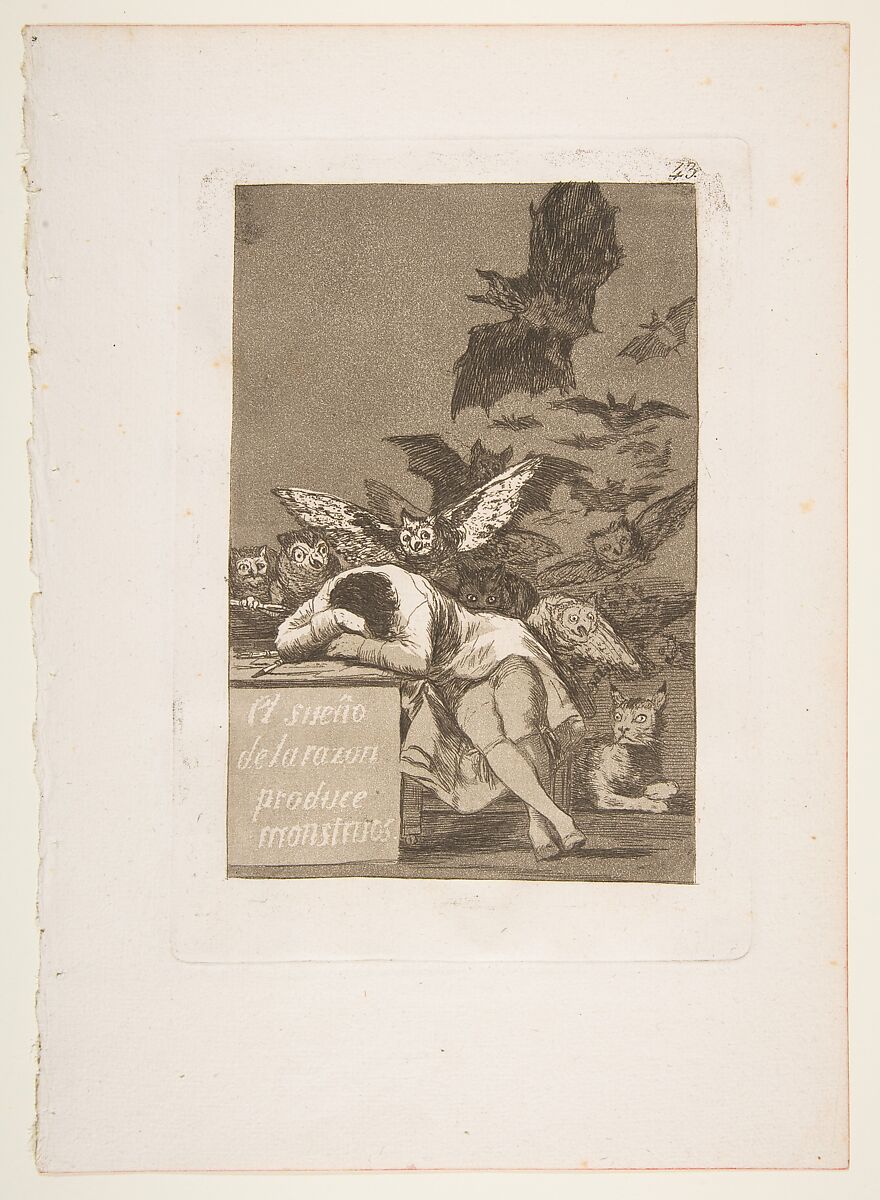
    <p style="text-align: center; font-size: 0.7em; color: grey;">Plate 43 from "Los Caprichos": The sleep of reason produces monsters (El sueño de la razon produce monstruos)</p>
  </div>
</div>

<p><br /></p>

<p>You could also use the main dataset we created to collect a series of images of Goya works. I am thinking of using AI to help me download all images of Goya in the public domain and try to build a model to describe or classify them in Python. Feel free to use the data and let me know about your analysis. Leave your comments or any questions below and happy coding!</p>

<p><br /></p>

<h1 id="conclusions">Conclusions</h1>

<p><br /></p>

<ul class="conclusion-list">
  <li>The <code class="language-plaintext highlighter-rouge">requests</code> library combined with <code class="language-plaintext highlighter-rouge">pd.json_normalize</code> makes extracting and structuring data from web APIs both seamless and efficient.</li>
  <li>Navigating public collections like the MET API enables us to perform large-scale data analysis on historical and cultural artifacts.</li>
  <li>Combining data extraction with clear visualizations (using Matplotlib) provides interpretable insights into an artist’s thematic legacy and creative focus.</li>
</ul>

<p><br /></p>

<hr />]]></content><author><name></name></author><category term="python" /><category term="digitalhumanities" /><summary type="html"><![CDATA[Discover how to retrieve data from the MET API using Python. Convert complex JSON data into pandas DataFrames and create a visualization of the most frequent terms in Francisco Goya's artwork tags.]]></summary><media:thumbnail xmlns:media="http://search.yahoo.com/mrss/" url="https://www.codingthepast.com/lesson_31.jpg" /><media:content medium="image" url="https://www.codingthepast.com/lesson_31.jpg" xmlns:media="http://search.yahoo.com/mrss/" /></entry><entry><title type="html">Data Science Quiz For Humanities</title><link href="https://www.codingthepast.com/2025/11/22/Data-Science-Quiz.html" rel="alternate" type="text/html" title="Data Science Quiz For Humanities" /><published>2025-11-22T00:00:00+00:00</published><updated>2025-11-22T00:00:00+00:00</updated><id>https://www.codingthepast.com/2025/11/22/Data-Science-Quiz</id><content type="html" xml:base="https://www.codingthepast.com/2025/11/22/Data-Science-Quiz.html"><![CDATA[<p>Test your skills with this interactive data science quiz covering statistics, Python, R, and data analysis.</p>

<div class="quiz-container">
  <style>
    .quiz-container { font-family: Inter, system-ui, -apple-system, "Segoe UI", Roboto, "Helvetica Neue", Arial; max-width: 900px; margin: 2rem auto; padding: 1.25rem; }
    .meta { text-align: center; color: #555; margin-bottom: 1.25rem; }
    .progress-wrap { background:#eee; border-radius:999px; overflow:hidden; height:14px; margin-bottom:1rem; box-shadow: inset 0 1px 2px rgba(0,0,0,0.03); }
    .progress-bar { height:100%; width:0%; transition: width 450ms cubic-bezier(.2,.8,.2,1); background: linear-gradient(90deg,#4f46e5,#06b6d4); }
    .question { background:#fbfdff; border:1px solid #eef2ff; padding:14px; border-radius:12px; margin-bottom:14px; box-shadow: 0 1px 2px rgba(13,17,25,0.03); }
    .q-head { display:flex; justify-content:space-between; align-items:center; gap:12px; }
    .q-num { background:#eef2ff; color:#3730a3; padding:6px 10px; border-radius:999px; font-weight:600; font-size:0.9rem; }
    .options label { display:block; margin:8px 0; padding:8px 10px; border-radius:8px; cursor:pointer; transition: background 180ms, transform 120ms; }
    .options input { margin-right:8px; }
    .options label:hover { transform: translateY(-2px); }
    .correct { background: #ecfdf5; border:1px solid #bbf7d0; }
    .incorrect { background: #ffefef; border:1px solid #fca5a5; }
    .muted { color:#666; font-size:0.9rem; }
    .controls { display:flex; gap:12px; justify-content:flex-end; align-items:center; margin-top:12px; }
    button.primary { background:#4f46e5; color:white; border:none; padding:10px 16px; border-radius:10px; cursor:pointer; font-weight:600; }
    button.ghost { background:transparent; border:1px solid #e5e7eb; padding:8px 12px; border-radius:10px; cursor:pointer; }
    #result { margin-top:16px; font-size:1.05rem; font-weight:700; text-align:center; }
    .explanation { margin-top:8px; font-size:0.95rem; color:#0f172a; }
    .fade-in { animation: fadeIn 380ms ease both; }
    @keyframes fadeIn { from { opacity:0; transform: translateY(6px);} to {opacity:1; transform:none;} }
  </style>

  Progress

  <br />
  
  <div class="progress-wrap" aria-hidden="true">
    <div id="progressBar" class="progress-bar" style="width:0%"></div>
  </div>
  <div class="muted" id="progressText">Answered 0 of 15</div>

  <form id="quizForm" class="fade-in">

    <!-- Questions 1–15 -->

    <!-- 1 -->
    <section class="question" data-q="q1">
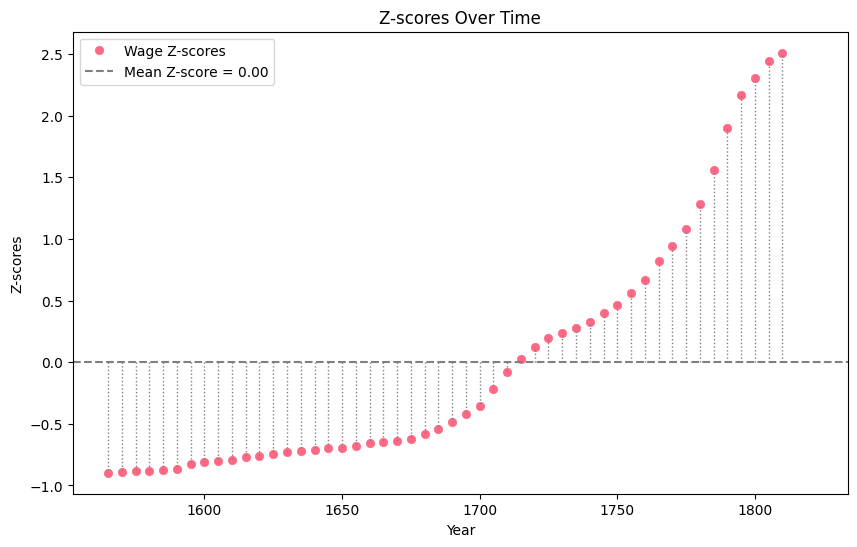
      <div class="q-head"><div class="q-num">1</div><div class="q-title"><strong>Which of the following best describes a z-score?</strong></div></div>
      <div class="options">
        <label><input type="radio" name="q1" value="A" /> A measure of central tendency</label>
        <label><input type="radio" name="q1" value="B" /> The number of standard deviations a value is from the mean</label>
        <label><input type="radio" name="q1" value="C" /> The square of the correlation coefficient</label>
        <label><input type="radio" name="q1" value="D" /> A type of probability distribution</label>
      </div>
    </section>

    <!-- 2 -->
    <section class="question" data-q="q2">
      <div class="q-head"><div class="q-num">2</div><div class="q-title"><strong>What is the main advantage of using tidy data principles in R?</strong></div></div>
      <div class="options">
        <label><input type="radio" name="q2" value="A" /> Increased computation speed</label>
        <label><input type="radio" name="q2" value="B" /> Easier visualization and consistent analysis</label>
        <label><input type="radio" name="q2" value="C" /> Reduced memory usage</label>
        <label><input type="radio" name="q2" value="D" /> Automatically removes missing values</label>
      </div>
    </section>

    <!-- 3 -->
    <section class="question" data-q="q3">
      <div class="q-head"><div class="q-num">3</div><div class="q-title"><strong>In Python, which library is most commonly used for data manipulation?</strong></div></div>
      <div class="options">
        <label><input type="radio" name="q3" value="A" /> matplotlib</label>
        <label><input type="radio" name="q3" value="B" /> numpy</label>
        <label><input type="radio" name="q3" value="C" /> pandas</label>
        <label><input type="radio" name="q3" value="D" /> statsmodels</label>
      </div>
    </section>

    <!-- 4 -->
    <section class="question" data-q="q4">
      <div class="q-head"><div class="q-num">4</div><div class="q-title"><strong>Which metric is best for evaluating a classification model on imbalanced data?</strong></div></div>
      <div class="options">
        <label><input type="radio" name="q4" value="A" /> Accuracy</label>
        <label><input type="radio" name="q4" value="B" /> Recall</label>
        <label><input type="radio" name="q4" value="C" /> Variance</label>
        <label><input type="radio" name="q4" value="D" /> R-squared</label>
      </div>
    </section>

    <!-- 5 -->
    <section class="question" data-q="q5">
      <div class="q-head"><div class="q-num">5</div><div class="q-title"><strong>In a linear regression, what does R² represent?</strong></div></div>
      <div class="options">
        <label><input type="radio" name="q5" value="A" /> Slope of the regression line</label>
        <label><input type="radio" name="q5" value="B" /> Variance explained by the model</label>
        <label><input type="radio" name="q5" value="C" /> Covariance between variables</label>
        <label><input type="radio" name="q5" value="D" /> Degree of overfitting</label>
      </div>
    </section>

    <!-- 6 -->
    <section class="question" data-q="q6">
      <div class="q-head"><div class="q-num">6</div><div class="q-title"><strong>In historical or humanities datasets, which challenge occurs most frequently?</strong></div></div>
      <div class="options">
        <label><input type="radio" name="q6" value="A" /> Excessively large sample sizes</label>
        <label><input type="radio" name="q6" value="B" /> Perfectly standardized variable names</label>
        <label><input type="radio" name="q6" value="C" /> Missing or incomplete records</label>
        <label><input type="radio" name="q6" value="D" /> Highly structured relational databases</label>
      </div>
    </section>

    <!-- 7 -->
    <section class="question" data-q="q7">
      <div class="q-head"><div class="q-num">7</div><div class="q-title"><strong>What does the <code>groupby()</code> function do in pandas?</strong></div></div>
      <div class="options">
        <label><input type="radio" name="q7" value="A" /> Sorts values by category</label>
        <label><input type="radio" name="q7" value="B" /> Applies aggregate operations to subsets of data</label>
        <label><input type="radio" name="q7" value="C" /> Removes duplicates</label>
        <label><input type="radio" name="q7" value="D" /> Normalizes columns</label>
      </div>
    </section>

    <!-- 8 -->
    <section class="question" data-q="q8">
      <div class="q-head"><div class="q-num">8</div><div class="q-title"><strong>What is the primary purpose of cross-validation?</strong></div></div>
      <div class="options">
        <label><input type="radio" name="q8" value="A" /> Increase training accuracy</label>
        <label><input type="radio" name="q8" value="B" /> Test different loss functions</label>
        <label><input type="radio" name="q8" value="C" /> Evaluate a model on unseen data to reduce overfitting</label>
        <label><input type="radio" name="q8" value="D" /> Speed up model training</label>
      </div>
    </section>

    <!-- 9 -->
    <section class="question" data-q="q9">
      <div class="q-head"><div class="q-num">9</div><div class="q-title"><strong>Feature engineering refers to:</strong></div></div>
      <div class="options">
        <label><input type="radio" name="q9" value="A" /> Training a model with more iterations</label>
        <label><input type="radio" name="q9" value="B" /> Preparing input variables to improve model performance</label>
        <label><input type="radio" name="q9" value="C" /> Removing outliers</label>
        <label><input type="radio" name="q9" value="D" /> Selecting the best model</label>
      </div>
    </section>

    <!-- 10 -->
    <section class="question" data-q="q10">
      <div class="q-head"><div class="q-num">10</div><div class="q-title"><strong>Which visualization is most appropriate for the distribution of a continuous variable?</strong></div></div>
      <div class="options">
        <label><input type="radio" name="q10" value="A" /> Bar chart</label>
        <label><input type="radio" name="q10" value="B" /> Histogram</label>
        <label><input type="radio" name="q10" value="C" /> Pie chart</label>
        <label><input type="radio" name="q10" value="D" /> Line plot</label>
      </div>
    </section>

    <!-- 11 -->
    <section class="question" data-q="q11">
      <div class="q-head"><div class="q-num">11</div><div class="q-title"><strong>A z-score of +2.5 means:</strong></div></div>
      <div class="options">
        <label><input type="radio" name="q11" value="A" /> The value is below the mean</label>
        <label><input type="radio" name="q11" value="B" /> The value is 2.5 SD above the mean</label>
        <label><input type="radio" name="q11" value="C" /> The value is an outlier</label>
        <label><input type="radio" name="q11" value="D" /> The standard deviation is 2.5</label>
      </div>
    </section>

    <!-- 12 -->
    <section class="question" data-q="q12">
      <div class="q-head"><div class="q-num">12</div><div class="q-title"><strong>Which is an advantage of using R for statistical analysis?</strong></div></div>
      <div class="options">
        <label><input type="radio" name="q12" value="A" /> Native GPU acceleration</label>
        <label><input type="radio" name="q12" value="B" /> Strong statistical libraries and ggplot2</label>
        <label><input type="radio" name="q12" value="C" /> Automatic machine learning</label>
        <label><input type="radio" name="q12" value="D" /> Faster than Python</label>
      </div>
    </section>

    <!-- 13 -->
    <section class="question" data-q="q13">
      <div class="q-head"><div class="q-num">13</div><div class="q-title"><strong>Normalization in data preprocessing means:</strong></div></div>
      <div class="options">
        <label><input type="radio" name="q13" value="A" /> Converting categorical data to numeric</label>
        <label><input type="radio" name="q13" value="B" /> Rescaling values to a standard range like 0–1</label>
        <label><input type="radio" name="q13" value="C" /> Detecting outliers</label>
        <label><input type="radio" name="q13" value="D" /> Filling missing values</label>
      </div>
    </section>

    <!-- 14 -->
    <section class="question" data-q="q14">
      <div class="q-head"><div class="q-num">14</div><div class="q-title"><strong>Why may historical datasets be biased?</strong></div></div>
      <div class="options">
        <label><input type="radio" name="q14" value="A" /> They always include all records</label>
        <label><input type="radio" name="q14" value="B" /> Selective or incomplete record-keeping</label>
        <label><input type="radio" name="q14" value="C" /> Automatic modern data collection</label>
        <label><input type="radio" name="q14" value="D" /> Perfect measurement systems</label>
      </div>
    </section>

    <!-- 15 -->
    <section class="question" data-q="q15">
      <div class="q-head"><div class="q-num">15</div><div class="q-title"><strong>Which Python function can compute a z-score?</strong></div></div>
      <div class="options">
        <label><input type="radio" name="q15" value="A" /> pandas.normalize()</label>
        <label><input type="radio" name="q15" value="B" /> scipy.stats.zscore()</label>
        <label><input type="radio" name="q15" value="C" /> numpy.z()</label>
        <label><input type="radio" name="q15" value="D" /> matplotlib.stats()</label>
      </div>
    </section>

    <div class="controls">
      <button type="button" id="submitBtn" class="primary">Submit Quiz</button>
      <button type="button" id="resetBtn" class="ghost">Try again</button>
    </div>

    <div id="result" role="status" aria-live="polite"></div>

  </form>

  <script>
    (function(){
      const answers = {
        q1: 'B', q2: 'B', q3: 'C', q4: 'B', q5: 'B',
        q6: 'C', q7: 'B', q8: 'C', q9: 'B', q10: 'B',
        q11: 'B', q12: 'B', q13: 'B', q14: 'B', q15: 'B'
      };

      const total = Object.keys(answers).length;
      const form = document.getElementById('quizForm');
      const submitBtn = document.getElementById('submitBtn');
      const resetBtn = document.getElementById('resetBtn');
      const resultEl = document.getElementById('result');
      const progressBar = document.getElementById('progressBar');
      const progressText = document.getElementById('progressText');

      function updateProgress(){
        const answered = Array.from(form.querySelectorAll('input[type=radio]'))
          .filter(i => i.checked)
          .map(i => i.name);
        // unique question names answered
        const unique = new Set(answered);
        const n = unique.size;
        const pct = Math.round((n/total)*100);
        progressBar.style.width = pct + '%';
        progressText.textContent = `Answered ${n} of ${total}`;
      }

      // update progress when any radio changes
      form.addEventListener('change', updateProgress);

      function showAnswers(){
        let score = 0;
        for(const q in answers){
          const correct = answers[q];
          const selector = `input[name="${q}"]`;
          const inputs = Array.from(document.querySelectorAll(selector));
          const chosen = inputs.find(i => i.checked);

          inputs.forEach(i => {
            const label = i.parentElement;
            label.classList.remove('correct','incorrect');
            // highlight correct option
            if(i.value === correct){
              label.classList.add('correct');
            }
          });

          if(chosen){
            if(chosen.value === correct){ score++; }
            else {
              // mark chosen wrong option red
              chosen.parentElement.classList.add('incorrect');
            }
          }
        }

        // Disable all inputs after submission
        form.querySelectorAll('input[type=radio]').forEach(i => i.disabled = true);

        // show score with a friendly message
        resultEl.innerHTML = `You scored <strong>${score} / ${total}</strong>.` + (score === total ? ' Brilliant! 🎉' : ' Nice attempt — review the highlighted answers.');

        // Reveal short explanations (kept brief for the blog)
        addExplanations();
      }

      function addExplanations(){
        const explanations = {
          q1: 'A z-score measures how many standard deviations a value is from the mean.',
          q2: 'Tidy data makes it easier to visualize and analyze because each variable is a column and each observation a row.',
          q3: 'pandas is the most common Python library for data manipulation and tabular data.',
          q4: 'Recall is useful on imbalanced datasets because it focuses on correctly identifying the positive class.',
          q5: 'R² indicates how much variance in the dependent variable is explained by the predictors.',
          q6: 'Historical datasets commonly have missing or incomplete records due to preservation and collection practices.',
          q7: 'groupby() groups rows by a key and allows aggregated operations (e.g., sum, mean) per group.',
          q8: 'Cross-validation evaluates model performance on unseen folds to reduce overfitting.',
          q9: 'Feature engineering creates and transforms variables to help models learn patterns better.',
          q10: 'Histograms show the distribution of continuous variables by binning values.',
          q11: 'A z-score of +2.5 is 2.5 standard deviations above the mean.',
          q12: 'R has a rich set of statistical packages and expressive visualization (ggplot2).',
          q13: 'Normalization rescales numeric values, commonly to 0–1, to make features comparable.',
          q14: 'Bias occurs because records may be selective, incomplete, or created under historical constraints.',
          q15: 'scipy.stats.zscore() is a ready-made function; you can also compute (x-mean)/std manually.'
        };

        for(const q in explanations){
          const section = document.querySelector(`section[data-q="${q}"]`);
          if(section && !section.querySelector('.explanation')){
            const div = document.createElement('div');
            div.className = 'explanation';
            div.textContent = explanations[q];
            section.appendChild(div);
          }
        }
      }

      function resetQuiz(){
        // enable inputs and clear checked states
        form.querySelectorAll('input[type=radio]').forEach(i => { i.checked = false; i.disabled = false; i.parentElement.classList.remove('correct','incorrect'); });
        // remove explanations
        form.querySelectorAll('.explanation').forEach(e => e.remove());
        resultEl.textContent = '';
        progressBar.style.width = '0%';
        progressText.textContent = `Answered 0 of ${total}`;
      }

      submitBtn.addEventListener('click', function(){
        // count how many answered
        const answeredCount = new Set(Array.from(form.querySelectorAll('input[type=radio]')).filter(i => i.checked).map(i => i.name)).size;
        if(answeredCount < total){
          if(!confirm(`You have answered ${answeredCount} of ${total}. Submit anyway?`)) return;
        }
        showAnswers();
      });

      document.getElementById('submit-btn').addEventListener('click', function() {
        gtag('event', 'submit_quiz', {
          event_category: 'quiz',
          event_label: 'data_science_quiz'
        });
      });

      resetBtn.addEventListener('click', function(){ if(confirm('Reset the quiz and try again?')) resetQuiz(); });

      // initial progress compute in case some radios are pre-selected
      updateProgress();

    })();
  </script>

</div>]]></content><author><name></name></author><category term="r" /><category term="statistics" /><category term="python" /><summary type="html"><![CDATA[Test your skills with this interactive data science quiz covering statistics, Python, R, and data analysis. Perfect for beginners and advanced learners.]]></summary><media:thumbnail xmlns:media="http://search.yahoo.com/mrss/" url="https://www.codingthepast.com/lesson_30.jpg" /><media:content medium="image" url="https://www.codingthepast.com/lesson_30.jpg" xmlns:media="http://search.yahoo.com/mrss/" /></entry><entry><title type="html">T test in R</title><link href="https://www.codingthepast.com/2025/09/21/T-Test-in-R.html" rel="alternate" type="text/html" title="T test in R" /><published>2025-09-21T00:00:00+00:00</published><updated>2025-09-21T00:00:00+00:00</updated><id>https://www.codingthepast.com/2025/09/21/T-Test-in-R</id><content type="html" xml:base="https://www.codingthepast.com/2025/09/21/T-Test-in-R.html"><![CDATA[<p>In this post, you will learn what a T Test is and how to perform it in R. First, you’ll see a simple function that lets you perform the test with just one line of code. Then, we will explore the intuition behind the test, building it step by step with data about the Titanic passengers. Enjoy the reading!</p>

<p><br /></p>

<h2 id="1-what-is-a-t-test">1. What is a T-Test?</h2>

<p><br /></p>

<p>A t-test is a statistical procedure used to check whether the difference between two groups is significant or just due to chance. In this post, we’ll look at data from Titanic passengers, dividing them into males and females. Suppose we want to test the hypothesis that men and women had the same average age. If our data shows that women were, on average, 2 years younger than men, we need to ask: is this a real difference, or could it have happened randomly? The t-test helps us answer this question.</p>

<p><br /></p>

<h2 id="2-why-is-a-t-test-important">2. Why is a T-Test important?</h2>

<p><br /></p>

<p>A t-test is important when we want to draw conclusions about a population based on a sample. For example, imagine we are studying the demographics of ship passengers at the beginning of the twentieth century and want to use the Titanic sample to generalize findings to a broader population of passengers.</p>

<p><br /></p>

<p>Of course, such inferences may be biased, since Titanic passengers might not perfectly represent all ship passengers of that era. Nevertheless, the sample can still provide valuable insights, as long as the context of both the sample and the population is carefully considered and clearly explained.</p>

<p><br /></p>

<h2 id="3-the-titanic-passengers">3. The Titanic passengers</h2>

<p><br /></p>

<p>We are going to use the <code class="language-plaintext highlighter-rouge">titanic</code> R library to access data about Titanic passengers. Specifically, we will work with a subset of passengers contained in the <code class="language-plaintext highlighter-rouge">titanic_train</code> dataset. Below, you will find the code to load the data, calculate the mean and standard deviation of age for males and females, and show how many passengers are men and women.</p>

<p><br /></p>
<div class="code-block">
  <span class="material-symbols-outlined" id="copy-button" onclick="copyCode('code-29-1')">
  content_copy
  <span class="tooltiptext">Copy</span>
</span>

  <div id="code-29-1">
    
<figure class="highlight"><pre><code class="language-r" data-lang="r"><span class="n">library</span><span class="p">(</span><span class="n">titanic</span><span class="p">)</span><span class="w">  
</span><span class="n">data</span><span class="p">(</span><span class="s1">'titanic_train'</span><span class="p">)</span><span class="w">
</span><span class="n">df</span><span class="w"> </span><span class="o">&lt;-</span><span class="w"> </span><span class="n">titanic_train</span><span class="w"> </span><span class="o">%&gt;%</span><span class="w"> 
    </span><span class="n">select</span><span class="p">(</span><span class="n">Sex</span><span class="p">,</span><span class="w"> </span><span class="n">Age</span><span class="p">)</span><span class="w"> </span><span class="o">%&gt;%</span><span class="w"> 
    </span><span class="n">na.omit</span><span class="p">()</span><span class="w">

</span><span class="n">df</span><span class="w"> </span><span class="o">%&gt;%</span><span class="w"> </span><span class="n">group_by</span><span class="p">(</span><span class="n">Sex</span><span class="p">)</span><span class="w"> </span><span class="o">%&gt;%</span><span class="w"> 
    </span><span class="n">summarize</span><span class="p">(</span><span class="n">mean</span><span class="p">(</span><span class="n">Age</span><span class="p">),</span><span class="w"> </span><span class="n">sd</span><span class="p">(</span><span class="n">Age</span><span class="p">),</span><span class="w"> </span><span class="n">n</span><span class="p">())</span><span class="w">
    </span></code></pre></figure>

  </div>
</div>
<p><br /></p>

<style>
.container-titanic {
  display: flex;
  justify-content: center;
  margin: 0rem 0;
}

.card {
  background: #ffffff;
  border-radius: 12px;
  box-shadow: 0 2px 6px rgba(0,0,0,0.08);
  padding: 1.5rem;
  max-width: 600px;
  width: 100%;
}

.card table {
  width: 100%;
  border-collapse: collapse;
  font-family: "Georgia", serif;
  font-size: 0.95rem;
  color: #333;
}

.card th {
  text-align: left;
  border-bottom: 2px solid #ccc;
  padding: 0.5rem 0.75rem;
  font-weight: 600;
  color: #222;
}

.card td {
  padding: 0.5rem 0.75rem;
  border-bottom: 1px solid #eee;
}

.card tbody tr:last-child td {
  border-bottom: none;
}

.sex-pill {
  display: inline-block;
  padding: 0.2rem 0.6rem;
  border-radius: 9999px;
  font-size: 0.85rem;
  font-weight: 500;
  color: #fff;
}

.sex-pill.female {
  background-color: #C84848;
}

.sex-pill.male {
  background-color: #183f6cff;
}
</style>

<div class="container-titanic">

<div class="card">
<table aria-describedby="summary-desc">
<thead>
<tr>
<th>Sex</th>
<th style="width:33%">mean(Age)</th>
<th style="width:33%">sd(Age)</th>
<th style="width:18%">n</th>
</tr>
</thead>
<tbody>
<tr>
<td><span class="sex-pill female">female</span></td>
<td>27.9</td>
<td>14.1</td>
<td>261</td>
</tr>
<tr>
<td><span class="sex-pill male">male</span></td>
<td>30.7</td>
<td>14.7</td>
<td>453</td>
</tr>
</tbody>
</table>
</div>
</div>

<p><br /></p>

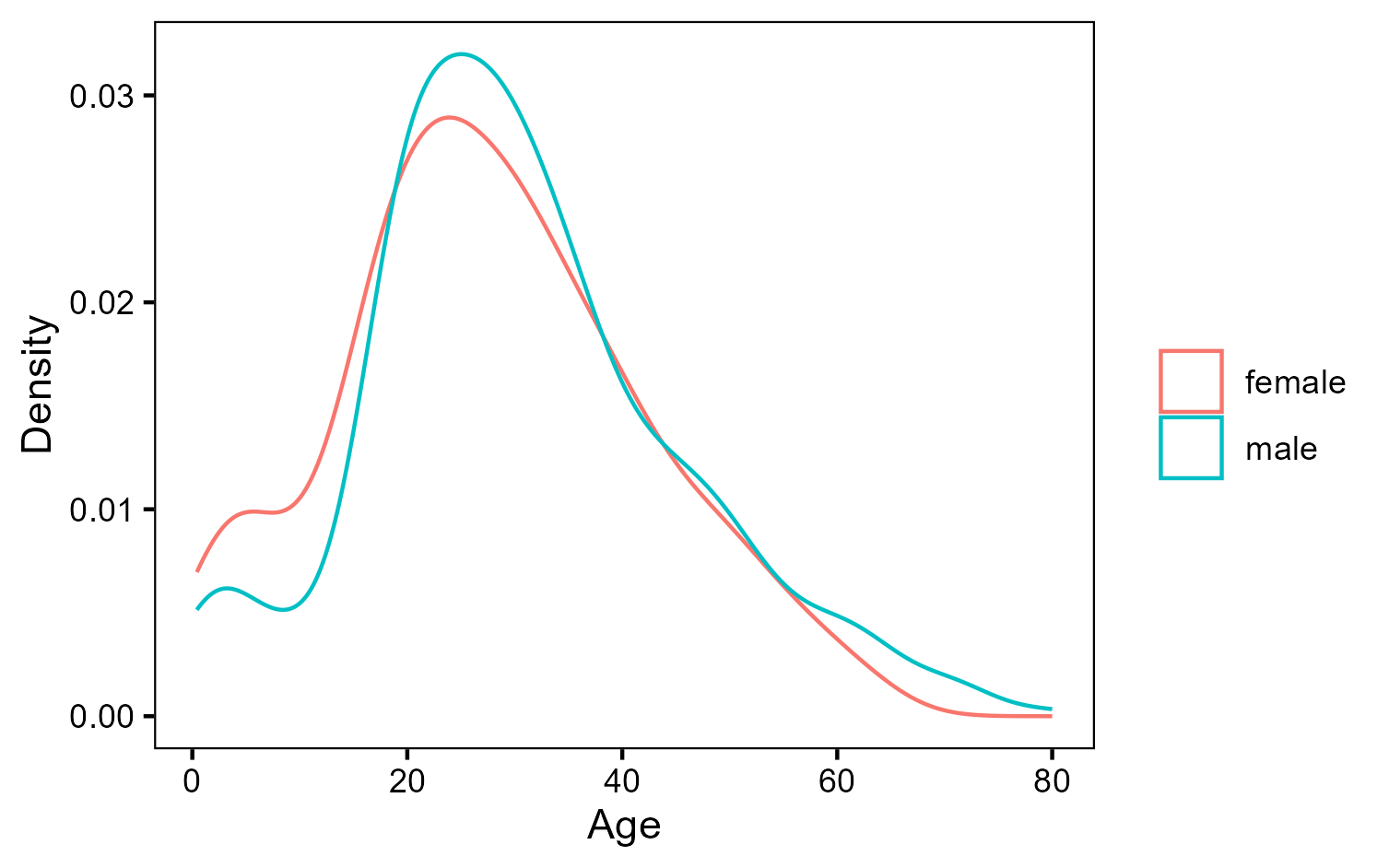
<p>We can see that there is a difference of 2.8 years between the average age of men and women on the Titanic. Below, you can also check the distribution of ages.</p>

<p><br /></p>
<div class="code-block">
  <span class="material-symbols-outlined" id="copy-button" onclick="copyCode('code-29-2')">
  content_copy
  <span class="tooltiptext">Copy</span>
</span>

  <div id="code-29-2">
    
<figure class="highlight"><pre><code class="language-r" data-lang="r"><span class="n">ggplot</span><span class="p">()</span><span class="o">+</span><span class="w">
  </span><span class="n">geom_density</span><span class="p">(</span><span class="n">aes</span><span class="p">(</span><span class="n">x</span><span class="o">=</span><span class="n">df</span><span class="o">$</span><span class="n">Age</span><span class="p">,</span><span class="w"> </span><span class="n">color</span><span class="w"> </span><span class="o">=</span><span class="w"> </span><span class="n">df</span><span class="o">$</span><span class="n">Sex</span><span class="p">),</span><span class="w"> </span><span class="n">size</span><span class="w"> </span><span class="o">=</span><span class="w"> </span><span class="m">0.7</span><span class="p">)</span><span class="o">+</span><span class="w">
  </span><span class="n">scale_color_discrete</span><span class="p">(</span><span class="s2">""</span><span class="p">)</span><span class="o">+</span><span class="w">
  </span><span class="n">xlab</span><span class="p">(</span><span class="s2">"Age"</span><span class="p">)</span><span class="o">+</span><span class="w">
  </span><span class="n">ylab</span><span class="p">(</span><span class="s2">"Density"</span><span class="p">)</span><span class="w">
    </span></code></pre></figure>

  </div>
</div>
<p><br /></p>

<div class="container-titanic">
  <div class="card">
    <img src="/assets/images/lesson_29_01.png" alt="Density distribution of ages by gender" style="max-width:100%; height:auto; display:block; margin:0 auto;" />
  </div>
</div>

<p><br /></p>

<p>It seems indeed that the distributions are very similar. In this case, our best option is to carry a T Test out to see if they are really so similar.</p>

<p><br /></p>

<h2 id="4-t-test-in-r">4. T test in R</h2>

<p><br /></p>

<p>A T test can be performed in R in a very easy way. There is a function called <code class="language-plaintext highlighter-rouge">t.test</code>, whose first argument is a formula, in our case, we would like to know how age varies across different genders. Thomas Leeper wrote a very clear explanation about formulas <a href="https://thomasleeper.com/Rcourse/Tutorials/formulae.html">in this page</a>. Important for us is that the formula is composed by a dependent variable on the left (Age), followed by “~” and one or more independent variables on the right (Sex). The second argument is simply the dataframe with the data we want to test. This test assumes the two samples are independent and that age is approximately normally distributed, which we confirmed by the density plot above.</p>

<p><br /></p>
<div class="code-block">
  <span class="material-symbols-outlined" id="copy-button" onclick="copyCode('code-29-3')">
  content_copy
  <span class="tooltiptext">Copy</span>
</span>

  <div id="code-29-3">
    
<figure class="highlight"><pre><code class="language-r" data-lang="r"><span class="n">t.test</span><span class="p">(</span><span class="n">Age</span><span class="w"> </span><span class="o">~</span><span class="w"> </span><span class="n">Sex</span><span class="p">,</span><span class="w"> </span><span class="n">data</span><span class="w"> </span><span class="o">=</span><span class="w"> </span><span class="n">df</span><span class="p">)</span><span class="w">
    </span></code></pre></figure>

  </div>
</div>
<p><br /></p>

<div class="container-titanic">
  <div class="card">
    <img src="/assets/images/lesson_29_02.png" alt="T test results in R" style="max-width:100%; height:auto; display:block; margin:0 auto;" />
  </div>
</div>

<p><br /></p>

<p>How to interpret these results?</p>

<ul class="conclusion-list">
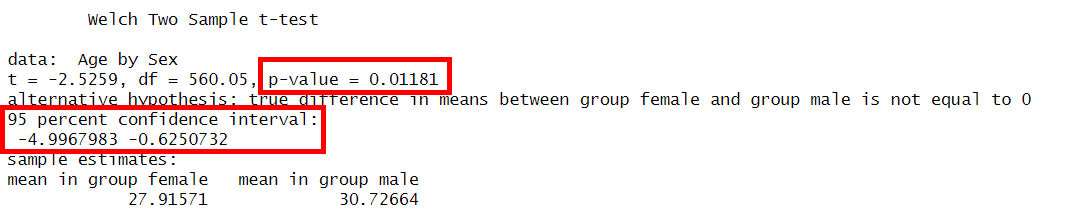
  <li>The p-value of 0.0118 means that if there were truly no difference in the average age between male and female passengers (i.e., if the null hypothesis were true), there would be only a 1.18% chance of observing a difference as large as the one we found or larger. Since this p-value is less than 0.05, we reject the null hypothesis at the 95% confidence level, suggesting that a real difference exists. However, if we had chosen a 99% confidence level, we would not reject the null hypothesis, because the p-value is greater than 0.01.</li>
  <li>Our confidence interval tells us that if we took many samples like the one we have, in 95% percent of the times, we would obtain a difference between averages between -0.62 and -5. This confidence interval does not include 0 and therefore we reject the null hypothesis and accept the hypothesis that there is a difference between the average age of men and women.</li>
</ul>

<p><br /></p>

<h2 id="5-t-test-with-bootstrap">5. T test with Bootstrap</h2>

<p><br /></p>

<p>A T test with bootstrap is a good way of understanding the concepts needed to interpret the results of the T test above. Everything relies on the Central Limit Theorem according to which if I draw many samples of a population and calculate the mean of each sample, then the distribution of all these means will:</p>

<p>(i) follow a normal distribution;</p>

<p>(ii) the mean of the sample means will approximate the population mean;</p>

<p>(iii) the standard deviation of this distribution will be called standard error.</p>

<p><br /></p>

<p>In our example, we have one sample of passengers. Imagine we could collect many of those samples. If we could do that, then the means of all samples would approximate the population parameter. Bootstrap is a technique to virtually create as many samples as we want from our unique sample. In our example, we have 712 ages after eliminating NAs. We could resample 712 observations from these values allowing them to repeat. That is the basic idea behind bootstrapping.</p>

<p><br /></p>

<p>In order to do that procedure, we will create a function that will resample our data frame. The first line of code uses <code class="language-plaintext highlighter-rouge">slice_sample</code> to randomly select <em>n</em> rows of our dataframe allowing for the same row to be chosen more than one time. Note that <em>n</em> is the number of rows of the dataframe. After that, we use <code class="language-plaintext highlighter-rouge">dplyr</code> to calculate the mean by gender. Note that we are actually interested in the difference between the male mean and the female mean. That’s what the two last lines of code do.</p>

<p><br /></p>
<div class="code-block">
  <span class="material-symbols-outlined" id="copy-button" onclick="copyCode('code-29-4')">
  content_copy
  <span class="tooltiptext">Copy</span>
</span>

  <div id="code-29-4">
    
<figure class="highlight"><pre><code class="language-r" data-lang="r"><span class="n">diff_means</span><span class="w"> </span><span class="o">&lt;-</span><span class="w"> </span><span class="k">function</span><span class="p">(</span><span class="n">data</span><span class="p">)</span><span class="w"> </span><span class="p">{</span><span class="w">
    </span><span class="n">sample_df</span><span class="w"> </span><span class="o">&lt;-</span><span class="w"> </span><span class="n">data</span><span class="w"> </span><span class="o">%&gt;%</span><span class="w"> </span><span class="n">slice_sample</span><span class="p">(</span><span class="n">n</span><span class="w"> </span><span class="o">=</span><span class="w"> </span><span class="n">nrow</span><span class="p">(</span><span class="n">data</span><span class="p">),</span><span class="w"> </span><span class="n">replace</span><span class="w"> </span><span class="o">=</span><span class="w"> </span><span class="kc">TRUE</span><span class="p">)</span><span class="w">
    </span><span class="n">means</span><span class="w"> </span><span class="o">&lt;-</span><span class="w"> </span><span class="n">sample_df</span><span class="w"> </span><span class="o">%&gt;%</span><span class="w">
        </span><span class="n">group_by</span><span class="p">(</span><span class="n">Sex</span><span class="p">)</span><span class="w"> </span><span class="o">%&gt;%</span><span class="w">
        </span><span class="n">summarize</span><span class="p">(</span><span class="n">mean_age</span><span class="w"> </span><span class="o">=</span><span class="w"> </span><span class="n">mean</span><span class="p">(</span><span class="n">Age</span><span class="p">,</span><span class="w"> </span><span class="n">na.rm</span><span class="w"> </span><span class="o">=</span><span class="w"> </span><span class="kc">TRUE</span><span class="p">))</span><span class="w">
    
    </span><span class="n">male_mean</span><span class="w"> </span><span class="o">&lt;-</span><span class="w"> </span><span class="n">means</span><span class="w"> </span><span class="o">%&gt;%</span><span class="w"> </span><span class="n">filter</span><span class="p">(</span><span class="n">Sex</span><span class="w"> </span><span class="o">==</span><span class="w"> </span><span class="s2">"male"</span><span class="p">)</span><span class="w">   </span><span class="o">%&gt;%</span><span class="w"> </span><span class="n">pull</span><span class="p">(</span><span class="n">mean_age</span><span class="p">)</span><span class="w">
    </span><span class="n">female_mean</span><span class="w"> </span><span class="o">&lt;-</span><span class="w"> </span><span class="n">means</span><span class="w"> </span><span class="o">%&gt;%</span><span class="w"> </span><span class="n">filter</span><span class="p">(</span><span class="n">Sex</span><span class="w"> </span><span class="o">==</span><span class="w"> </span><span class="s2">"female"</span><span class="p">)</span><span class="w"> </span><span class="o">%&gt;%</span><span class="w"> </span><span class="n">pull</span><span class="p">(</span><span class="n">mean_age</span><span class="p">)</span><span class="w">
    </span><span class="nf">return</span><span class="p">(</span><span class="n">male_mean</span><span class="w"> </span><span class="o">-</span><span class="w"> </span><span class="n">female_mean</span><span class="p">)</span><span class="w">
</span><span class="p">}</span><span class="w">
    </span></code></pre></figure>

  </div>
</div>
<p><br /></p>

<p>Now we can use the <code class="language-plaintext highlighter-rouge">replicate</code> function to execute our function for <em>n</em> times. For our purpose 1000 times is enough. Note that <code class="language-plaintext highlighter-rouge">replicate</code> works like a for loop. Before we do that, however, let us make a small adjustment so that we can also calculate our p-value. The p-value assumes the null hypothesis is true. Therefore, before resampling our data, let us make the difference between means be 0. For that, let us subtract the difference observed, 2.81, from the ages of all males.</p>

<p><br /></p>
<div class="code-block">
  <span class="material-symbols-outlined" id="copy-button" onclick="copyCode('code-29-5')">
  content_copy
  <span class="tooltiptext">Copy</span>
</span>

  <div id="code-29-5">
    
<figure class="highlight"><pre><code class="language-r" data-lang="r"><span class="n">df_null</span><span class="w"> </span><span class="o">&lt;-</span><span class="w"> </span><span class="n">df</span><span class="w"> </span><span class="o">%&gt;%</span><span class="w"> 
    </span><span class="n">mutate</span><span class="p">(</span><span class="n">Age</span><span class="w"> </span><span class="o">=</span><span class="w"> </span><span class="n">ifelse</span><span class="p">(</span><span class="n">Sex</span><span class="o">==</span><span class="s2">"male"</span><span class="p">,</span><span class="w"> </span><span class="n">Age</span><span class="m">-2.81</span><span class="p">,</span><span class="w"> </span><span class="n">Age</span><span class="p">))</span><span class="w">
    
</span><span class="n">set.seed</span><span class="p">(</span><span class="m">1308</span><span class="p">)</span><span class="w">
</span><span class="n">diffs</span><span class="w"> </span><span class="o">&lt;-</span><span class="w"> </span><span class="n">replicate</span><span class="p">(</span><span class="m">1000</span><span class="p">,</span><span class="w"> </span><span class="n">diff_means</span><span class="p">(</span><span class="n">df_null</span><span class="p">))</span><span class="w">

</span><span class="n">sd</span><span class="p">(</span><span class="n">diffs</span><span class="p">)</span><span class="w">
</span><span class="n">mean</span><span class="p">(</span><span class="n">diffs</span><span class="p">)</span><span class="w">

</span><span class="n">ggplot</span><span class="p">()</span><span class="o">+</span><span class="w">
    </span><span class="n">geom_histogram</span><span class="p">(</span><span class="n">aes</span><span class="p">(</span><span class="n">x</span><span class="w"> </span><span class="o">=</span><span class="w"> </span><span class="n">diffs</span><span class="p">),</span><span class="w"> </span><span class="n">color</span><span class="w"> </span><span class="o">=</span><span class="w"> </span><span class="s2">"white"</span><span class="p">,</span><span class="w"> </span><span class="n">fill</span><span class="w"> </span><span class="o">=</span><span class="w"> </span><span class="s2">"#2E3031"</span><span class="p">)</span><span class="o">+</span><span class="w">
    </span><span class="n">geom_vline</span><span class="p">(</span><span class="n">xintercept</span><span class="w"> </span><span class="o">=</span><span class="w"> </span><span class="m">-2.8</span><span class="p">,</span><span class="w"> </span><span class="n">color</span><span class="w"> </span><span class="o">=</span><span class="w"> </span><span class="s2">"#A33F3F"</span><span class="p">)</span><span class="o">+</span><span class="w">
    </span><span class="n">geom_vline</span><span class="p">(</span><span class="n">xintercept</span><span class="w"> </span><span class="o">=</span><span class="w"> </span><span class="m">2.8</span><span class="p">,</span><span class="w"> </span><span class="n">color</span><span class="w"> </span><span class="o">=</span><span class="w"> </span><span class="s2">"#A33F3F"</span><span class="p">)</span><span class="o">+</span><span class="w">
    </span><span class="n">scale_color_discrete</span><span class="p">(</span><span class="s2">""</span><span class="p">)</span><span class="o">+</span><span class="w">
    </span><span class="n">xlab</span><span class="p">(</span><span class="s2">"Age Differences (Null Hypothesis)"</span><span class="p">)</span><span class="o">+</span><span class="w">
    </span><span class="n">ylab</span><span class="p">(</span><span class="s2">"Number of Individuals"</span><span class="p">)</span><span class="o">+</span><span class="w">
    </span><span class="n">theme_bw</span><span class="p">()</span><span class="w">
    </span></code></pre></figure>

  </div>
</div>
<p><br /></p>

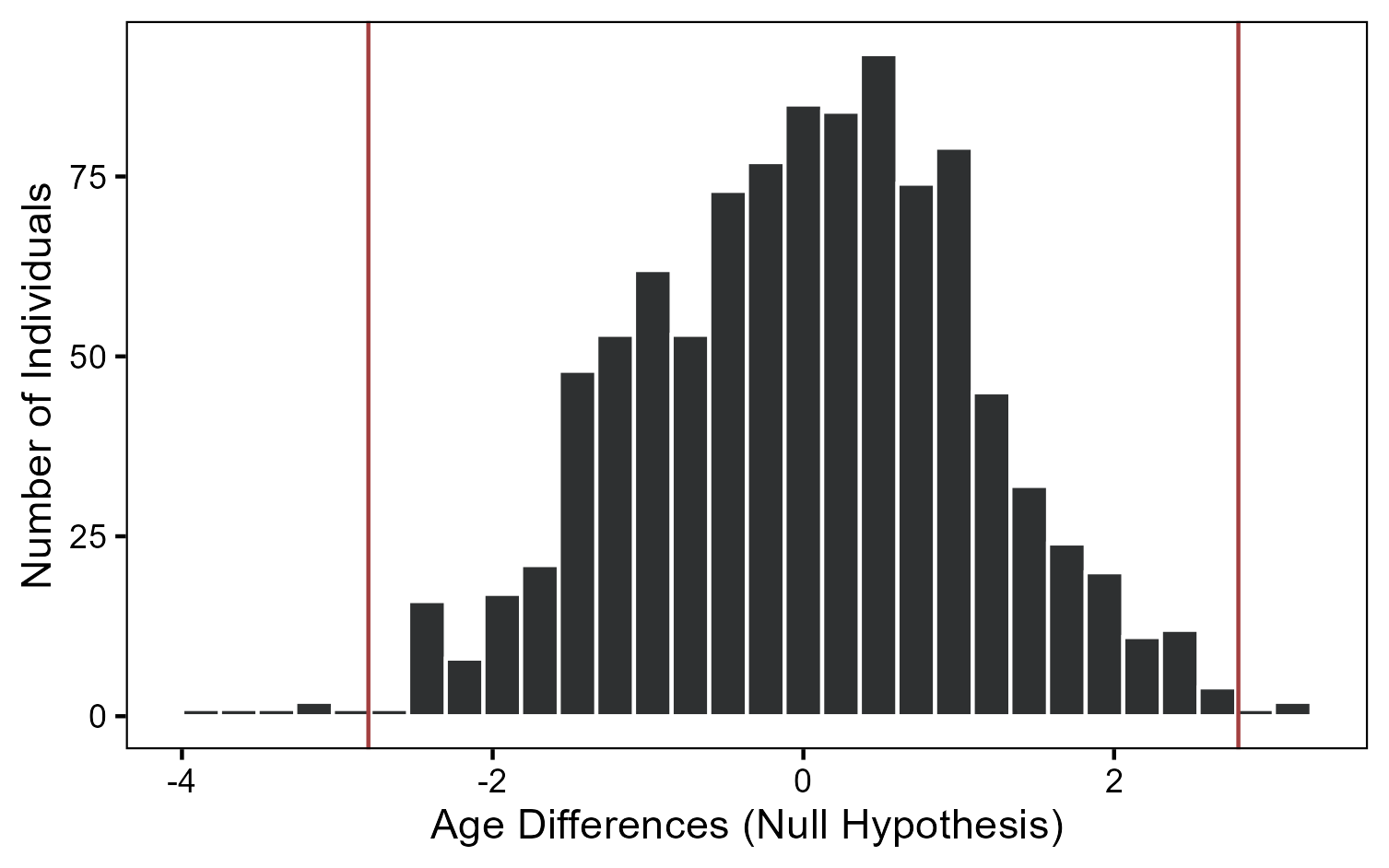
<p>Executing the commands above we get that the mean of the <a href="https://www.geo.fu-berlin.de/en/v/soga-r/Basics-of-statistics/Central-Limit-Theorem/Sampling-Distribution/index.html">sampling distribution</a> ­­- as the distribution of the sample means is called - is approximately 0, as expected, and its standard deviation is 1.1.</p>

<div class="container-titanic">
  <div class="card">
    <img src="/assets/images/lesson_29_03.png" alt="Sampling Distribution" style="max-width:100%; height:auto; display:block; margin:0 auto;" />
  </div>
</div>

<p><br /></p>

<p>The histogram above shows us how the sample differences would look like if the null hypothesis were true. The red lines show the difference we observed in reality. Do you think it is likely to observe what we observed under the null hypothesis? It is actually not and you can calculate it with the code below:</p>

<p><br /></p>
<div class="code-block">
  <span class="material-symbols-outlined" id="copy-button" onclick="copyCode('code-29-6')">
  content_copy
  <span class="tooltiptext">Copy</span>
</span>

  <div id="code-29-6">
    
<figure class="highlight"><pre><code class="language-r" data-lang="r"><span class="nf">sum</span><span class="p">(</span><span class="n">diffs</span><span class="o">&gt;=</span><span class="m">2.81</span><span class="p">)</span><span class="o">/</span><span class="m">1000</span><span class="w">
</span><span class="nf">sum</span><span class="p">(</span><span class="n">diffs</span><span class="o">&lt;=</span><span class="m">-2.81</span><span class="p">)</span><span class="o">/</span><span class="m">1000</span><span class="w">
    </span></code></pre></figure>

  </div>
</div>
<p><br /></p>

<p>The code computes the number of samples whose means were more extrem than 2.8 (male age - female age) or -2.8 (female age - male age). This results in 9 samples out of 1.000, or 0.9%. This estimate is very close to the p-value found using the R function <code class="language-plaintext highlighter-rouge">t.test</code>. Again we can reject the null hypothesis and conclude that there is a difference between the average age of men and women.</p>

<p><br /></p>

<p>In addition to helping us better understand the test, the bootstrap method has the advantage of not assuming that the age distribution follows a normal distribution. This is another benefit of using this approach.</p>

<p><br /></p>

<p>Please, use the comments below if you did not understand a specific point of the test or if you have a suggestion to improve the test.</p>]]></content><author><name></name></author><category term="r" /><category term="statistics" /><summary type="html"><![CDATA[Learn how to perform a T-Test in R and explore the statistical intuition behind the test.]]></summary><media:thumbnail xmlns:media="http://search.yahoo.com/mrss/" url="https://www.codingthepast.com/lesson_29.jpg" /><media:content medium="image" url="https://www.codingthepast.com/lesson_29.jpg" xmlns:media="http://search.yahoo.com/mrss/" /></entry><entry><title type="html">From R to Tableau - Leverage Both Tools for Effective Dashboards</title><link href="https://www.codingthepast.com/2025/07/06/From-R-to-Tableau.html" rel="alternate" type="text/html" title="From R to Tableau - Leverage Both Tools for Effective Dashboards" /><published>2025-07-06T00:00:00+00:00</published><updated>2025-07-05T00:00:00+00:00</updated><id>https://www.codingthepast.com/2025/07/06/From-R-to-Tableau</id><content type="html" xml:base="https://www.codingthepast.com/2025/07/06/From-R-to-Tableau.html"><![CDATA[<p><br /></p>

<p><em>When the violence causes silence, we must be mistaken.</em></p>

<p>Zombie, The Cranberries (1994)</p>

<p><br /></p>

<p>Data analysis can be more than quarterly KPIs or complicated statistical models — it can help us remember and critically retell our past. While Latin America is often viewed as a peaceful region, the second half of the 20th century saw several brutal authoritarian regimes. <a href="https://en.wikipedia.org/wiki/Military_dictatorship_of_Chile">Chile’s dictatorship (1973‑1990)</a> was among the most violent.</p>

<p><br /></p>

<p>In this post, I show how I used an R package to obtain data about the victims of Chile’s dictatorship and visualize it in Tableau Public. You’ll also discover the strengths and limitations of each tool for dashboard creation.</p>

<p><br /></p>

<h2 id="1-the-pinochet-package">1. The pinochet Package</h2>

<p>Developed by <a href="https://danilofreire.github.io/dist/index.html">Professor Danilo Freire</a> and colleagues, <a href="https://cran.r-project.org/web/packages/pinochet/vignettes/pinochet.html">the <code class="language-plaintext highlighter-rouge">pinochet</code> R package</a> provides clean and tidy data on victims of the Chilean dictatorship. Each row in the dataset represents one individual.</p>

<p><br /></p>

<p><span class="material-symbols-outlined" id="copy-button" onclick="copyCode('code-28-1')">
  content_copy
  <span class="tooltiptext">Copy</span>
</span></p>

<div id="code-28-1">

<figure class="highlight"><pre><code class="language-r" data-lang="r"><span class="n">install.packages</span><span class="p">(</span><span class="s2">"pinochet"</span><span class="p">)</span><span class="w">

</span><span class="n">library</span><span class="p">(</span><span class="n">pinochet</span><span class="p">)</span><span class="w">

</span><span class="n">data</span><span class="p">(</span><span class="n">pinochet</span><span class="p">)</span><span class="w">  </span><span class="c1"># loads the data in a data frame called pinochet</span><span class="w">

</span><span class="n">str</span><span class="p">(</span><span class="n">pinochet</span><span class="p">)</span><span class="w">   </span><span class="c1"># explores the structure of the data frame</span></code></pre></figure>


</div>

<p><br /></p>

<p>R excels at complex tasks — such as causal inference and statistical analyses — and it is equally powerful (and free) for data exploration and interactivity. With <a href="https://shiny.posit.co/">Shiny</a>, you can build attractive dashboards entirely in R. However, mastering Shiny and producing polished interactive visuals with libraries like <a href="https://plotly.com/">Plotly</a> can take significant time and practice.</p>

<p><br /></p>

<p>In this context, <a href="https://public.tableau.com/app/discover">Tableau Public</a> is an appealing option. It is the free edition of Tableau, designed for exploring public datasets and building engaging dashboards, while you learn. Tableau is a drag-and-drop tool that lets you create visualizations without writing code. As noted earlier, it is less versatile than R, but it is also easier to learn and use. In just a few hours, you can build beautiful exploratory dashboards using drag-and-drop alone. That’s why I chose Tableau to visualize this data. To bring the dataset into Tableau, I saved it as an Excel (.xlsx) file.</p>

<p><br /></p>

<p><span class="material-symbols-outlined" id="copy-button" onclick="copyCode('code-28-2')">
  content_copy
  <span class="tooltiptext">Copy</span>
</span></p>

<div id="code-28-2">

<figure class="highlight"><pre><code class="language-r" data-lang="r"><span class="n">library</span><span class="p">(</span><span class="n">writexl</span><span class="p">)</span><span class="w">

</span><span class="n">write_xlsx</span><span class="p">(</span><span class="n">pinochet</span><span class="p">,</span><span class="w"> </span><span class="s2">"pinochet.xlsx"</span><span class="p">)</span></code></pre></figure>


</div>

<p><br /></p>

<h2 id="2-tableau-public">2. Tableau Public</h2>

<p><a href="https://public.tableau.com/app/discover">Tableau Public</a> is a free, public platform for exploring, creating, and sharing data visualizations. It offers a more limited version of the well-known data visualization tool, Tableau.</p>

<p><br /></p>

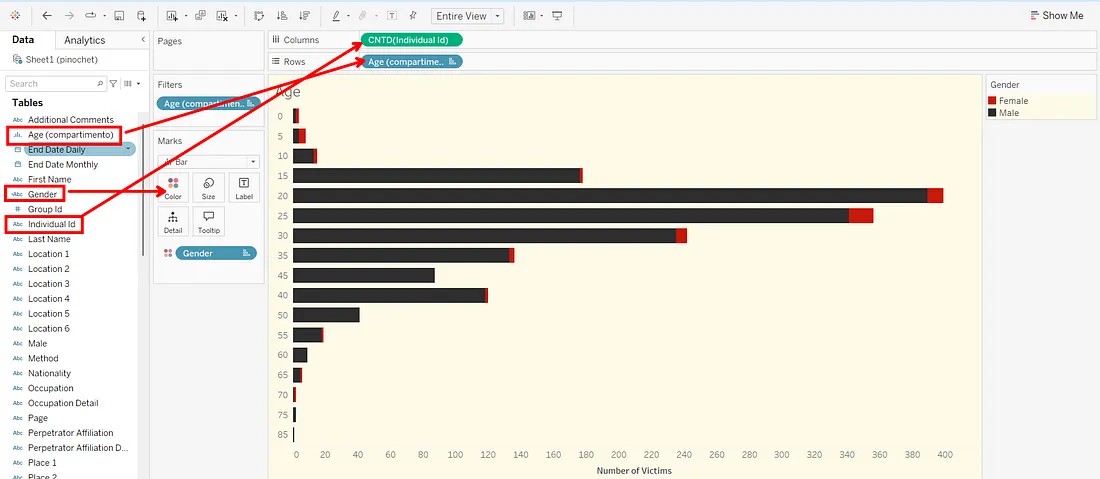
<p>Tableau, like <a href="https://ggplot2-book.org/">ggplot2</a>, has its roots in the <a href="https://data.europa.eu/apps/data-visualisation-guide/foundation-of-the-grammar-of-graphics">Grammar of Graphics</a>, a framework for understanding and creating visualizations. Within this framework, a plot is built by mapping data variables to visual aesthetics. In Tableau, this mapping is accomplished through drag-and-drop: you literally place fields onto the X-axis, Y-axis, Color shelf, and so on.</p>

<p><br /></p>

<p><img src="/assets/images/lesson_28_01.jpg" alt="Mapping variables to visual elements of a plot in Tableau. " /></p>

<p><br /></p>

<p>In contrast, <code class="language-plaintext highlighter-rouge">ggplot2</code> mappings happen through code:</p>

<p><br /></p>

<p><span class="material-symbols-outlined" id="copy-button" onclick="copyCode('code-28-3')">
  content_copy
  <span class="tooltiptext">Copy</span>
</span></p>

<div id="code-28-3">

<figure class="highlight"><pre><code class="language-r" data-lang="r"><span class="n">ggplot</span><span class="p">(</span><span class="n">data</span><span class="w"> </span><span class="o">=</span><span class="w"> </span><span class="n">df</span><span class="p">,</span><span class="w"> </span><span class="n">aes</span><span class="p">(</span><span class="n">x</span><span class="w"> </span><span class="o">=</span><span class="w"> </span><span class="n">x</span><span class="p">,</span><span class="w"> </span><span class="n">y</span><span class="w"> </span><span class="o">=</span><span class="w"> </span><span class="n">y</span><span class="p">,</span><span class="w"> </span><span class="n">color</span><span class="w"> </span><span class="o">=</span><span class="w"> </span><span class="n">gender</span><span class="p">))</span><span class="w"> </span><span class="o">+</span><span class="w"> </span><span class="n">geom_point</span><span class="p">()</span></code></pre></figure>


</div>

<p><br /></p>

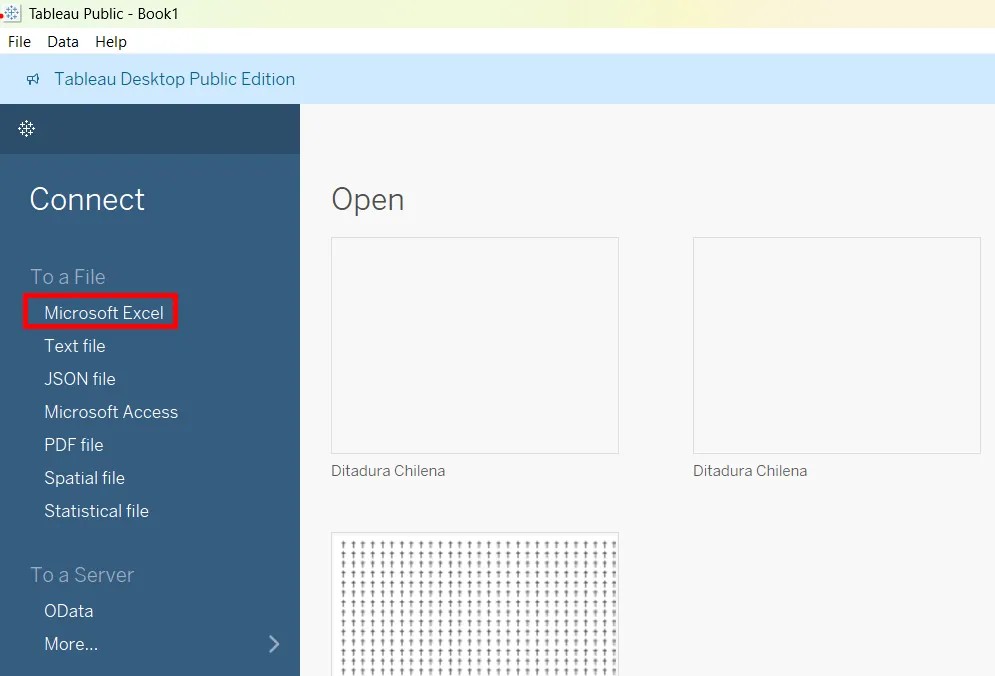
<p>You can download Tableau Public Desktop in the official Tableau webpage. When you open it, you can easily load the Excel file you saved from R by selecting a connection to Microsoft Excel or Text File (if you prefer to save it as a .csv)</p>

<p><br /></p>

<p><img src="/assets/images/lesson_28_02.jpg" alt="Connecting to data in Tableau Public." /></p>

<p><br /></p>

<p>Please, check out this <a href="https://data.europa.eu/apps/data-visualisation-guide/grammar-of-graphics-in-practice-tableau#tableau-online">tutorial</a> to learn more about Tableau Public. You can also download my <a href="https://public.tableau.com/views/DitaduraChilena/Dashboard1?:language=en-US&amp;:sid=&amp;:redirect=auth&amp;:display_count=n&amp;:origin=viz_share_link">Tableau workbook</a>, that contains the dashboard, and check out how I created the full dashboard. Don’t forget to leave a star if you enjoy it! 🙂</p>

<p><br /></p>

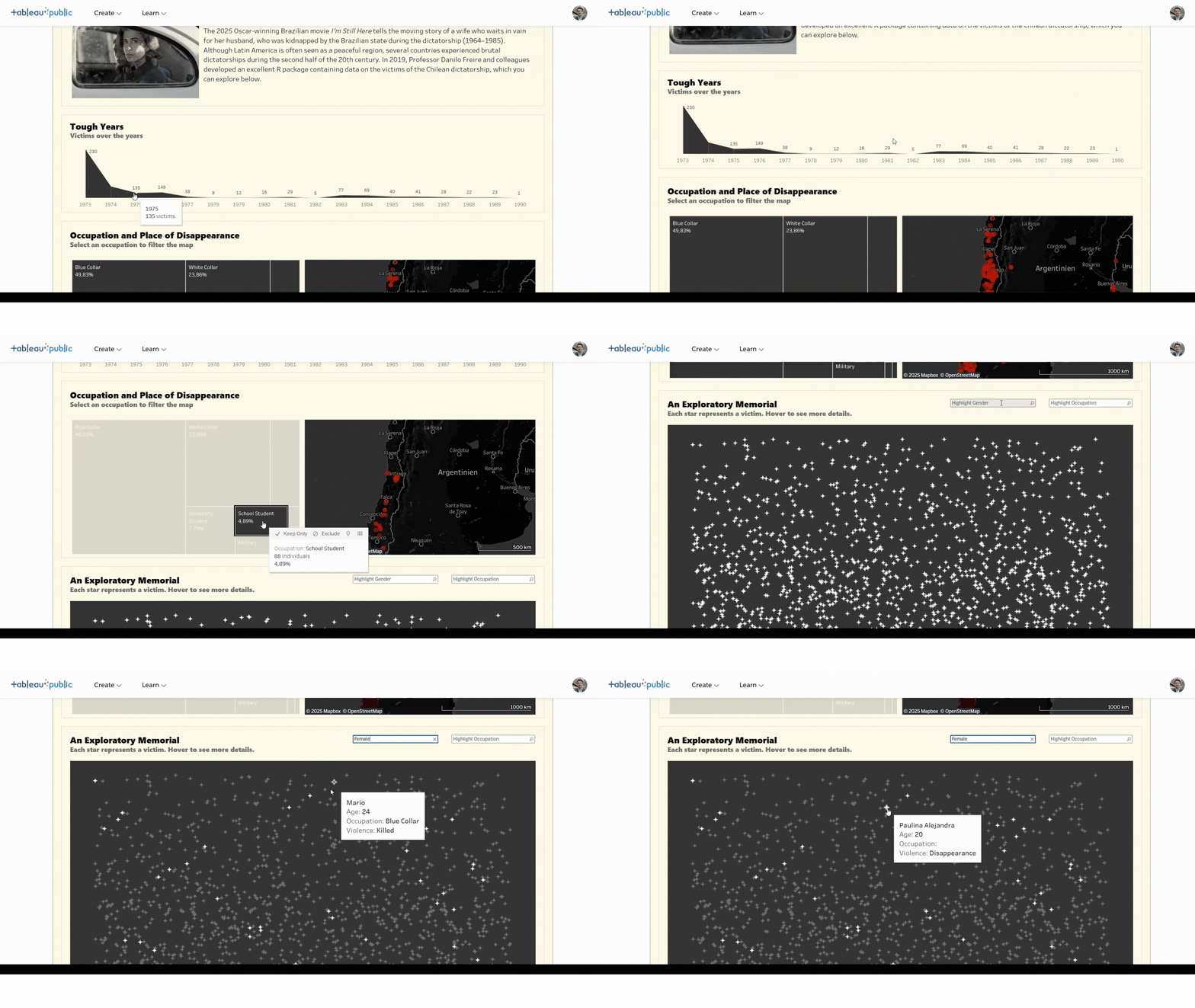
<p><img src="/assets/images/lesson_28_03.gif" alt="The Dashboard Overview" /></p>

<p><br /></p>

<h2 id="3-the-dashboard-and-key-insights">3. The Dashboard and Key Insights</h2>

<h3 id="31-the-dashboard">3.1 The Dashboard</h3>

<p>The dashboard is organized into four interactive sections:</p>

<p><br /></p>

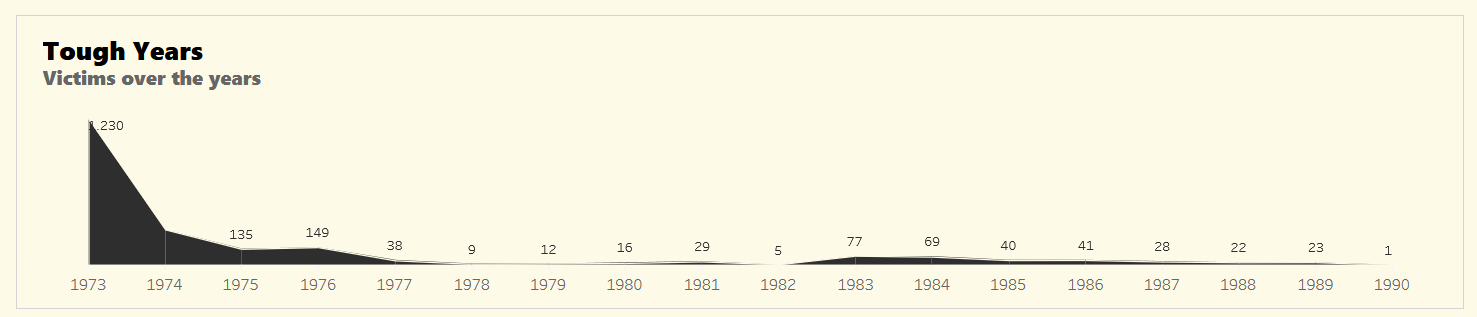
<p><strong>1. Tough Years</strong><br />
  A bar chart of victims per year.<br />
  <em>Tip: Scrub over the bars to filter by year.</em></p>

<p><br /></p>

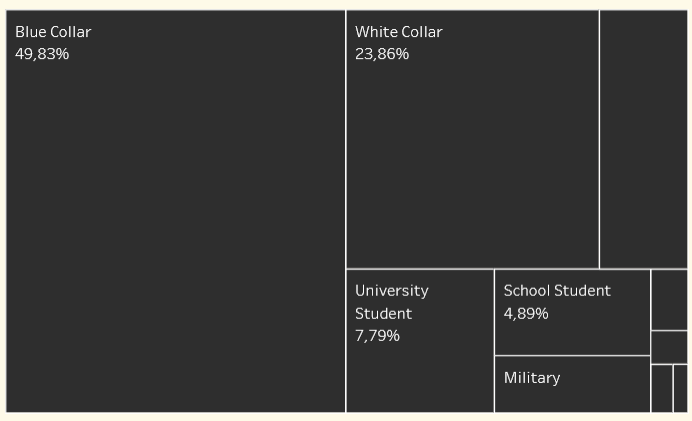
<p><strong>2. Occupation &amp; Place of Disappearance</strong><br />
  Treemap and map views.<br />
  <em>Tip: Click an occupation to highlight where those victims disappeared.</em></p>

<p><br /></p>

<p><strong>3. An Exploratory Memorial</strong><br />
  One star per confirmed victim.<br />
  <em>Tip: Hover to read personal details.</em></p>

<p><br /></p>

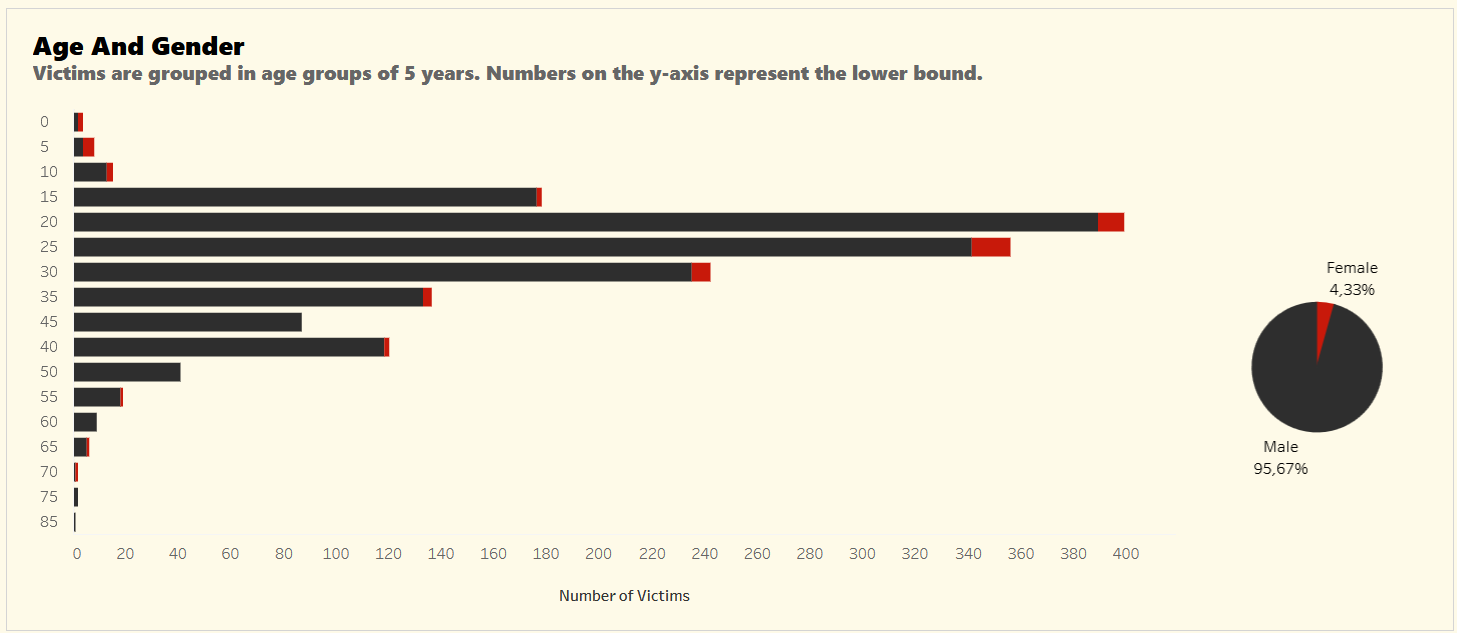
<p><strong>4. Age &amp; Gender</strong><br />
  Histogram split by gender.<br />
  <em>Tip: Hover bars to see counts; toggle genders in the legend.</em></p>

<p><br /></p>

<h3 id="32-key-insights">3.2 Key Insights</h3>

<p>Here are some insights from the dashboard:</p>

<p><br /></p>

<p><strong>1973 was the deadliest year</strong>, with ~1,230 victims during the coup.</p>

<p><br /></p>

<p><img src="/assets/images/lesson_28_04.png" alt="Victims over the years." /></p>

<p><br /></p>

<p><strong>Blue-collar workers</strong> made up almost half the victims, revealing a class dimension of state violence.</p>

<p><br /></p>

<p><strong>Students</strong> (university and school) accounted for nearly 13% of the disappeared — a stark cost of activism.</p>

<p><br /></p>

<p><img src="/assets/images/lesson_28_05.png" alt="Victims by Occupation. " /></p>

<p><br /></p>

<p><strong>96% of the victims were male</strong>, but the women’s stories reveal deep family traumas.</p>

<p><br /></p>

<p><strong>Most victims were between 20–30 years old</strong> — showing how youth were disproportionately targeted.</p>

<p><br /></p>

<p><img src="/assets/images/lesson_28_06.png" alt="Victims by age and gender. " /></p>

<p><br /></p>

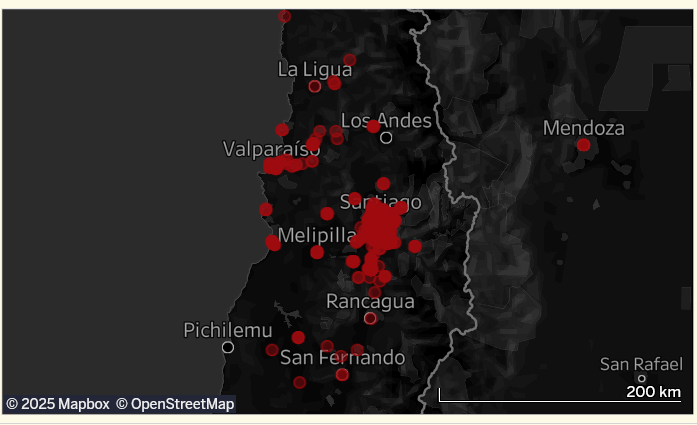
<p><strong>No place was safe</strong> — from Santiago to remote mining towns, disappearances happened everywhere.</p>

<p><br /></p>

<p><img src="/assets/images/lesson_28_07.png" alt="Map showing where victims disappeared. " /></p>

<p><br /></p>

<h2 id="4-conclusions-and-limitations">4. Conclusions and Limitations</h2>

<p>Tableau is a user-friendly tool for creating visual dashboards — especially good for quick exploration and sharing. It supports traditional charts and maps, and its drag‑and‑drop interface is great for beginners.</p>

<p><br /></p>

<p>However, it has limitations. It lacks advanced statistical tools and doesn’t support robust preprocessing or modeling tasks. That’s where R truly shines.</p>

<p><br /></p>

<p>Used together, R and Tableau offer a powerful combo for data-driven storytelling.</p>

<p><br /></p>

<p><strong>Data Source:</strong> Freire, D., Mingardi, L., &amp; McDonnell, R. (2019). <em>pinochet: Data About the Victims of the Pinochet Regime, 1973–1990</em></p>

<p><br /></p>

<p><a href="https://public.tableau.com/views/DitaduraChilena/Dashboard1?:language=en-US&amp;:sid=&amp;:redirect=auth&amp;:display_count=n&amp;:origin=viz_share_link"><strong>Link to Tableau Public Dashboard</strong></a></p>

<p><br /></p>

<hr />

<p><br /></p>

<p>What other historical datasets would you like to see visualized? Share your ideas in the comments below!</p>]]></content><author><name>Bruno Ponne</name></author><category term="r" /><category term="tableau" /><category term="digitalhumanities" /><summary type="html"><![CDATA[Tableau vs R - Explore how to use the pinochet R package and Tableau Public to visualize data about the Chilean dictatorship. Discover the strengths and limitations of R and Tableau for building dashboards.]]></summary><media:thumbnail xmlns:media="http://search.yahoo.com/mrss/" url="https://www.codingthepast.com/lesson_28.jpg" /><media:content medium="image" url="https://www.codingthepast.com/lesson_28.jpg" xmlns:media="http://search.yahoo.com/mrss/" /></entry><entry><title type="html">My Journey Learning R as a Humanities Undergrad</title><link href="https://www.codingthepast.com/2025/04/22/How-I-learned-R.html" rel="alternate" type="text/html" title="My Journey Learning R as a Humanities Undergrad" /><published>2025-04-22T00:00:00+00:00</published><updated>2025-04-22T00:00:00+00:00</updated><id>https://www.codingthepast.com/2025/04/22/How-I-learned-R</id><content type="html" xml:base="https://www.codingthepast.com/2025/04/22/How-I-learned-R.html"><![CDATA[<p><br /></p>

<h2 id="1-a-passion-for-the-past">1. A Passion for the Past</h2>

<p>Since I was a teenager, History has been one of my passions. I was very lucky in high school to have a great History teacher whom I could listen to for hours. My interest was, of course, driven by curiosity about all those dead humans in historical plots that exist no more except in books, images, movies, and — mostly — in our imagination.</p>

<p><br /></p>

<p>However, what really triggered my passion was realizing how different texts can describe the same event from such varied perspectives. We are able to see the same realities in different ways, which gives us the power  to shape our lives — and our future — ­­­into something more meaningful, if we so choose.</p>

<p><br /></p>

<h2 id="2-first-encounters-with-r">2. First Encounters with R</h2>

<p>When I began my master’s in public policy at the Hertie School in Berlin, Statistics I was a mandatory course for both management and policy analysis, the two areas of concentration offered in the course.  I began the semester certain I would choose management because I’d always struggled with mathematical abstractions. However, as the first semester passed, I became intrigued by some of the concepts we were learning in Statistics I. Internal and external validity, selection bias, and regression to the mean were concepts that truly captured my interest and have applications far beyond statistics, reaching into many areas of research.</p>

<p><br /></p>

<p class="fig-caption"><img src="/assets/images/lesson_27_01.jpg" alt="The Hertie School Building" />
The Hertie School Building. Source: Zugzwang1972, CC BY 3.0, via Wikimedia Commons</p>
<p><br /></p>

<p>Then came our first R programming assignments. I struggled endlessly with function syntax and felt frustrated by every error — especially since I needed strong grades to pass Statistics I. Yet each failure also felt like a challenge I couldn’t put down. I missed RStudio’s help features and wasted time searching the web for solutions, but slowly the pieces began to click.</p>

<p><br /></p>

<hr />

<p><br /></p>

<h2 id="3-discovering-datacamp">3. Discovering DataCamp</h2>

<p>By semester’s end, I was eager to dive deeper. That’s when I discovered that as Master candidates, we had free access to DataCamp — a platform that combines short, focused videos with in-browser coding exercises, no software installation required. The instant feedback loop—seeing my ggplot chart render in seconds—gave me a small win every day. Over a few months, I completed courses from <strong>Introduction to R</strong> and <strong>ggplot2</strong> to more advanced statistical topics. DataCamp’s structured approach transformed my frustration into momentum. <a href="https://datacamp.pxf.io/nXWj4a">Introduction to Statistics in R</a> was one of my first courses and helped me pass Stats I with a better grade. You can test the first chapter for free to see if it matches your learning style.</p>

<p><br /></p>

<p class="fig-caption"><img src="/assets/images/lesson_27_02.png" alt="DataCamp Methodology" />
DataCamp Method. Source: AI Generated.</p>

<p><br /></p>

<div class="text-note">
    <span class="material-symbols-outlined">
        tips_and_updates
    </span>
    <span class="text-note-title">&nbsp; </span> 
    <div class="text-note-content"> The links to DataCamp in this post are affiliate links. That means if you click them and sign up, I receive a small share of the subscription value from DataCamp, which helps me maintain this blog. That being said, there are many free resources on the Internet that are very effective for learning R without spending any money. One suggestion is the HTML free version of "R Cookbook" that helped me a lot to deepen my R skills.:
        
        <a href="https://rc2e.com/" target="_blank"> R Cookbook</a>
        
    </div>
</div>

<p><br /></p>

<hr />

<p><br /></p>

<h2 id="4-building-confidence-and-choosing-policy-analysis">4. Building Confidence and Choosing Policy Analysis</h2>

<p>Armed with new R skills, I chose policy analysis for my concentration area—and I’ve never looked back. Learning to program in R created a positive feedback loop for my statistical learning, as visualizations and simulations gave life to abstract concepts I once found very difficult to understand.</p>

<p><br /></p>

<hr />

<p><br /></p>

<h2 id="5-pandemic-pivot">5. Pandemic Pivot</h2>

<p>Then the pandemic of 2020 hit, which in some ways only fueled my R learning since we could do little besides stay home at our computers. Unfortunately, my institution stopped providing us with free DataCamp accounts, but I continued to learn R programming and discovered <a href="https://stackoverflow.com/questions">Stack Overflow</a> — a platform of questions and answers for R and Python, among other languages — to debug my code.</p>

<p><br /></p>

<p>I also began reading more of the official documentation for functions and packages, which was not as pleasant or easy as watching DataCamp videos, which summarized everything for me. As I advanced, I had to become more patient and persevere to understand the packages and functions I needed. I also turned to books—mostly from <a href="https://www.oreilly.com/">O’Reilly Media</a>, a publisher with extensive programming resources. There are also many free and great online books, such as <a href="https://r4ds.had.co.nz/introduction.html">R for Data Science</a>.</p>

<p><br /></p>

<p class="fig-caption"><img src="/assets/images/lesson_27_03.png" alt="My resources to learn R" />
Main Resources Used to Learn R. Source: Author.</p>
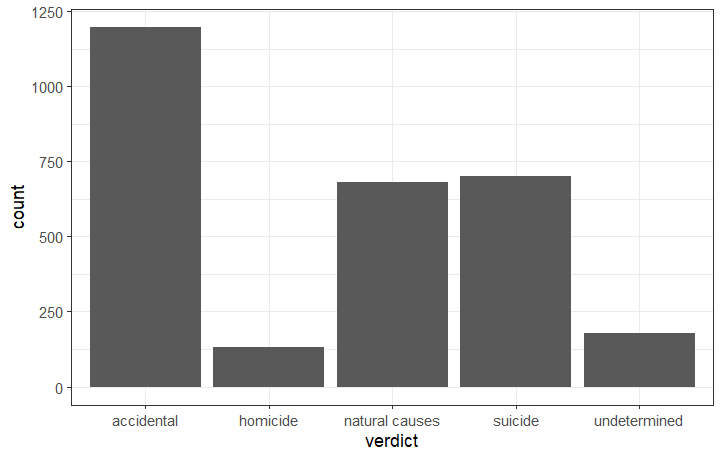
<p><br /></p>

<hr />

<p><br /></p>

<h2 id="6-thesis--beyond">6. Thesis &amp; Beyond</h2>

<p>In 2021, I completed my master’s degree with a thesis evaluating educational policies in Brazil. To perform this analysis, I used the synthetic control method—implemented via an <a href="https://cran.r-project.org/web/packages/Synth/index.html">R package</a>. If you’re interested, you can read my thesis here: <a href="https://doi.org/10.1590/1981-3821202300010005">Better Incentives, Better Marks: A Synthetic Control Evaluation of Educational Policies in Ceará, Brazil</a>. 
My thesis is also an example of how you can learn R by working on a project with goals and final results. It also introduced me to <a href="https://git-scm.com/">Git</a> and <a href="https://github.com/">GitHub</a>, a well known system for controling the versions of your coding projects and a nice tool to showcase your coding skills.</p>

<p><br /></p>

<hr />

<p><br /></p>

<h2 id="7-ai-as-a-resource-to-learn-programming">7. AI as a resource to learn programming</h2>

<p>Although AI wasn’t part of my initial learning journey, I shouldn’t overlook its growing influence on programming in recent years. I wouldn’t recommend relying on AI for your very first steps in R, but it can be a valuable tool when you’ve tried to accomplish something and remain stuck. Include the error message you’re encountering in your prompt, or ask AI to explain the code line by line if you’re unsure what it does. However, avoid asking AI to write entire programs or scripts for you, as this will limit your learning and you may be surprised by errors. Use AI to assist you, but always review its suggestions and retain final control over your code.</p>

<p><br /></p>

<hr />

<p><br /></p>

<h2 id="key-takeaways">Key Takeaways</h2>

<ul class="conclusion-list">
  <li>Learning R as a humanities major can be daunting, but persistence pays off.</li>
  <li>Embrace small, consistent wins — DataCamp’s bite‑sized exercises are perfect for that.</li>
  <li>Visualizations unlock understanding — seeing data come to life cements concepts.</li>
  <li>Phase in documentation and books when you need to tackle more advanced topics.</li>
  <li>Use AI to debug your code and explain what the code of other programmers does.</li>
  <li>Join the community — Stack Overflow, GitHub, online books and peer groups bridge gaps when videos aren’t enough.</li>
</ul>

<p><br /></p>

<hr />

<p><br /></p>

<h2 id="ready-to-start-your-own-journey">Ready to Start Your Own Journey?</h2>

<p>If you’re also beginning or if you want to deepen your R skills, DataCamp is a pleasant and productive way to get going. Using my discounted link below supports Coding the Past and helps me keep fresh content coming on my blog:</p>

<p><br /></p>

<h3 id="start-learning-r-on-datacamp-with-my-discounted-link"><a href="https://datacamp.pxf.io/Wy2ybP">Start Learning R on DataCamp with My Discounted Link</a></h3>

<p><br /></p>

<p><br /></p>

<p>What was the biggest challenge you faced learning R? Share your story in the comments below!</p>]]></content><author><name>Bruno Ponne</name></author><category term="r" /><category term="statistics" /><category term="digitalhumanities" /><summary type="html"><![CDATA[Discover how a public policy master's student transformed frustration into successfully learning R — from first syntax errors in RStudio to mastering ggplot2 on DataCamp.]]></summary><media:thumbnail xmlns:media="http://search.yahoo.com/mrss/" url="https://www.codingthepast.com/lesson_27.png" /><media:content medium="image" url="https://www.codingthepast.com/lesson_27.png" xmlns:media="http://search.yahoo.com/mrss/" /></entry><entry><title type="html">geom_bar() in ggplot2 Explained - When to Use stat=’count’ vs stat=’identity’</title><link href="https://www.codingthepast.com/2025/02/24/geom_bar.html" rel="alternate" type="text/html" title="geom_bar() in ggplot2 Explained - When to Use stat=’count’ vs stat=’identity’" /><published>2025-02-24T00:00:00+00:00</published><updated>2025-02-24T00:00:00+00:00</updated><id>https://www.codingthepast.com/2025/02/24/geom_bar</id><content type="html" xml:base="https://www.codingthepast.com/2025/02/24/geom_bar.html"><![CDATA[<p><br /></p>

<p><strong>ggplot2</strong> is a powerful and well-known data visualization package for R. But do you know what <strong>gg</strong> stands for? It actually refers to the <strong>Grammar of Graphics</strong>, a conceptual framework for understanding and constructing graphs. The core idea behind the Grammar of Graphics is that a plot consists of multiple layers.</p>

<p><br /></p>

<p>The most well-known layers are <strong>geometries</strong> — the geometric forms that represent data in a plot — and <strong>aesthetic mappings</strong>, which connect data to specific visual properties. A lesser-known but equally important layer is the <strong>statistical layer</strong>, which transforms the original data to enable specific types of plots. This may sound complex at first, but it’s actually quite intuitive. In this lesson, we will explore how <code class="language-plaintext highlighter-rouge">geom_bar()</code> applies a statistical transformation to make bar plots simpler and more straightforward.</p>

<p><br /></p>

<h2 id="1-how-does-geom_bar-work-by-default">1. How does geom_bar work by default?</h2>

<p>To exemplify geom_bar’s default behavior, we will use <a href="https://github.com/sharonhoward/ll-coroners/blob/master/coroners_inquests/wa_coroners_inquests_v1-1.tsv">a dataset</a> about Westminster inquests conducted between 1760 and 1799. 
These inquests document investigations into deaths that occurred under sudden, unexplained, or suspicious circumstances. To learn more, please visit the project webpage <a href="https://www.londonlives.org/">London Lives 1690-1800: Crime, Poverty and Social Policy in the Metropolis</a>.</p>

<p><br /></p>

<p>The first step is to load the data using <code class="language-plaintext highlighter-rouge">read_tsv()</code>, a function from the <code class="language-plaintext highlighter-rouge">readr</code> package used to read <em>tab-separated values</em>. The verdict variable tells us the conclusion of the investigation, which could be, for example that the death was a homicide or a suicide. 
To simplify our analysis we unify ‘suicide (delirious)’, ‘suicide (felo de se)’, and ‘suicide (insane)’ into a single category: ‘suicide’. We also filter out observations where the verdict or gender is missing.</p>

<p><br /></p>

<p><span class="material-symbols-outlined" id="copy-button" onclick="copyCode('code-26-1')">
  content_copy
  <span class="tooltiptext">Copy</span>
</span></p>

<div id="code-26-1">

<figure class="highlight"><pre><code class="language-r" data-lang="r"><span class="n">library</span><span class="p">(</span><span class="n">readr</span><span class="p">)</span><span class="w">
</span><span class="n">library</span><span class="p">(</span><span class="n">dplyr</span><span class="p">)</span><span class="w">
</span><span class="n">library</span><span class="p">(</span><span class="n">ggplot2</span><span class="p">)</span><span class="w">

</span><span class="n">df</span><span class="w"> </span><span class="o">&lt;-</span><span class="w"> </span><span class="n">read_tsv</span><span class="p">(</span><span class="s2">"wa_coroners_inquests_v1-1.tsv"</span><span class="p">)</span><span class="w">

</span><span class="n">df_prep</span><span class="w"> </span><span class="o">&lt;-</span><span class="w"> </span><span class="n">df</span><span class="w"> </span><span class="o">%&gt;%</span><span class="w"> 
  </span><span class="n">filter</span><span class="p">(</span><span class="n">verdict</span><span class="w"> </span><span class="o">!=</span><span class="w"> </span><span class="s2">"-"</span><span class="p">)</span><span class="w"> </span><span class="o">%&gt;%</span><span class="w"> 
  </span><span class="n">filter</span><span class="p">(</span><span class="n">gender</span><span class="w"> </span><span class="o">%in%</span><span class="w"> </span><span class="nf">c</span><span class="p">(</span><span class="s2">"m"</span><span class="p">,</span><span class="w"> </span><span class="s2">"f"</span><span class="p">))</span><span class="w"> </span><span class="o">%&gt;%</span><span class="w"> 
  </span><span class="n">mutate</span><span class="p">(</span><span class="n">verdict</span><span class="w"> </span><span class="o">=</span><span class="w"> </span><span class="n">recode</span><span class="p">(</span><span class="n">verdict</span><span class="p">,</span><span class="w"> </span><span class="s2">"suicide (delirious)"</span><span class="w"> </span><span class="o">=</span><span class="w"> </span><span class="s2">"suicide"</span><span class="p">,</span><span class="w">
                          </span><span class="s2">"suicide (felo de se)"</span><span class="w"> </span><span class="o">=</span><span class="w"> </span><span class="s2">"suicide"</span><span class="p">,</span><span class="w">
                          </span><span class="s2">"suicide (insane)"</span><span class="w"> </span><span class="o">=</span><span class="w"> </span><span class="s2">"suicide"</span><span class="p">))</span></code></pre></figure>


</div>

<p><br /></p>

<p>Each row of <code class="language-plaintext highlighter-rouge">df_prep</code> contains data about the investigation of one death, including the date, gender, and verdict. 
We would like to have a first overview about the verdicts to determine how many deaths were classified as homicide, suicide, accidental, etc. 
The default behavior of geom_bar makes it very easy to visualize this information:</p>

<p><br /></p>

<p><span class="material-symbols-outlined" id="copy-button" onclick="copyCode('code-26-2')">
  content_copy
  <span class="tooltiptext">Copy</span>
</span></p>

<div id="code-26-2">

<figure class="highlight"><pre><code class="language-r" data-lang="r"><span class="n">theme_set</span><span class="p">(</span><span class="n">theme_bw</span><span class="p">())</span><span class="w"> </span><span class="c1"># chooses a lighter ggplot2 theme: theme_bw()</span><span class="w">

</span><span class="n">ggplot</span><span class="p">(</span><span class="n">data</span><span class="w"> </span><span class="o">=</span><span class="w"> </span><span class="n">df_prep</span><span class="p">)</span><span class="o">+</span><span class="w">
    </span><span class="n">geom_bar</span><span class="p">(</span><span class="n">aes</span><span class="p">(</span><span class="n">x</span><span class="o">=</span><span class="n">verdict</span><span class="p">))</span></code></pre></figure>


</div>

<p><br /></p>

<p><img src="/assets/images/lesson_26_01.png" alt="geom_bar plot" /></p>

<p><br /></p>

<p>Why does this work if we mapped a categorical variable to x? Where does ggplot2 get the count for each cause of death? 
Well, every geometry in ggplot2 has an associated default statistical transformation that tells ggplot whether it should consider the raw input data or whether it should first transform the dataset and then plot it. 
In the case of geom_bar, the default stat is “count”. That means ggplot will create a second dataframe with the values of verdict and their respective frequency/count, as shown in the figure below.</p>

<p><br /></p>

<p><img src="/assets/images/lesson_26_02.png" alt="Statistical transformation in ggplot2" /></p>

<p><br /></p>

<p>As you can see, ggplot2 does this work for you. But what if your data has already been transformed? In that case, you need to explicitly set <code class="language-plaintext highlighter-rouge">geom_bar(aes(x=verdict, y = count), stat = "identity")</code>. If stat is set to “identity”, then ggplot takes the raw input data and does not perform any transformation. In that case, note that an x and y are necessary.</p>

<p><br /></p>

<div class="text-note">
    <span class="material-symbols-outlined">
        tips_and_updates
    </span>
    <span class="text-note-title">&nbsp; </span> 
    <div class="text-note-content">  You can use the command `layer_data(plot = last_plot(), i = 1L)` to check out the data ggplot transformed for you. Use this command after the plot command. It will get the transformed data from the last plot, regarding i = 1L, or the first layer of our plot (geom_bar in this case).
        
    </div>
</div>

<p><br /></p>

<hr />

<p><br /></p>

<h2 id="2-how-to-reorder-geom_bar">2. How to reorder geom_bar?</h2>

<p>One improvement we can make to our plot is to reorder the verdicts so that the most frequent one comes first. This can be done with the help of the <a href="https://forcats.tidyverse.org/">forcats package</a>. One of its functions, <code class="language-plaintext highlighter-rouge">fct_infreq()</code>, reorders a variable based on the frequency of its values (largest first).</p>

<p><br /></p>

<p><span class="material-symbols-outlined" id="copy-button" onclick="copyCode('code-26-3')">
  content_copy
  <span class="tooltiptext">Copy</span>
</span></p>

<div id="code-26-3">

<figure class="highlight"><pre><code class="language-r" data-lang="r"><span class="n">ggplot</span><span class="p">(</span><span class="n">data</span><span class="w"> </span><span class="o">=</span><span class="w"> </span><span class="n">df_prep</span><span class="p">)</span><span class="o">+</span><span class="w">
    </span><span class="n">geom_bar</span><span class="p">(</span><span class="n">aes</span><span class="p">(</span><span class="n">x</span><span class="o">=</span><span class="n">fct_infreq</span><span class="p">(</span><span class="n">verdict</span><span class="p">)))</span></code></pre></figure>


</div>

<p><br /></p>

<p><br /></p>

<p><img src="/assets/images/lesson_26_03.png" alt="reorder geom_bar" /></p>

<p><br /></p>

<hr />

<p><br /></p>

<h2 id="3-stacked-and-percent-stacked-geom_bar">3. Stacked and percent stacked geom_bar</h2>

<p>Imagine now that you would like to investigate how the verdicts compare across genders, highlighting the cases involving female individuals. 
This can easily be achieved by mapping gender to the fill aesthetics. The result is two bars on top of each other, one referring to male and other to female.</p>

<p><br /></p>

<p>In the code below, we also make our plot more visually attractive by changing the colors, legend title, and labels. Moreover, we adjust the axis labels.</p>

<p><br /></p>

<p><span class="material-symbols-outlined" id="copy-button" onclick="copyCode('code-26-4')">
  content_copy
  <span class="tooltiptext">Copy</span>
</span></p>

<div id="code-26-4">

<figure class="highlight"><pre><code class="language-r" data-lang="r"><span class="n">ggplot</span><span class="p">(</span><span class="n">data</span><span class="w"> </span><span class="o">=</span><span class="w"> </span><span class="n">df_prep</span><span class="p">)</span><span class="o">+</span><span class="w">
    </span><span class="n">geom_bar</span><span class="p">(</span><span class="n">aes</span><span class="p">(</span><span class="n">x</span><span class="o">=</span><span class="n">fct_infreq</span><span class="p">(</span><span class="n">verdict</span><span class="p">),</span><span class="w"> </span><span class="n">fill</span><span class="w"> </span><span class="o">=</span><span class="w"> </span><span class="n">gender</span><span class="p">))</span><span class="o">+</span><span class="w">
    </span><span class="n">scale_fill_manual</span><span class="p">(</span><span class="n">name</span><span class="w"> </span><span class="o">=</span><span class="w"> </span><span class="s2">""</span><span class="p">,</span><span class="w"> </span><span class="n">values</span><span class="w"> </span><span class="o">=</span><span class="w"> </span><span class="nf">c</span><span class="p">(</span><span class="s2">"#f79326"</span><span class="p">,</span><span class="w"> </span><span class="s2">"gray"</span><span class="p">),</span><span class="w"> </span><span class="n">labels</span><span class="w"> </span><span class="o">=</span><span class="w"> </span><span class="nf">c</span><span class="p">(</span><span class="s2">"Female"</span><span class="p">,</span><span class="w"> </span><span class="s2">"Male"</span><span class="p">))</span><span class="o">+</span><span class="w">
    </span><span class="n">labs</span><span class="p">(</span><span class="n">x</span><span class="w"> </span><span class="o">=</span><span class="w"> </span><span class="s2">""</span><span class="p">,</span><span class="w"> </span><span class="n">y</span><span class="w"> </span><span class="o">=</span><span class="w"> </span><span class="s2">"Number of Cases"</span><span class="p">)</span></code></pre></figure>


</div>

<p><br /></p>

<p><img src="/assets/images/lesson_26_04.png" alt="stacked geom_bar" /></p>

<p><br /></p>

<p>The stacked bar chart above results from the default <code class="language-plaintext highlighter-rouge">position = "stack"</code> configuration. 
To better visualize the distribution of female and male cases for each cause of death (verdict), we can display the percentages instead of absolute counts. 
This approach makes it easier to see in which verdict category females have a higher proportion.
To achieve this, you need to change position to <code class="language-plaintext highlighter-rouge">position = "fill"</code> in geom_bar().</p>

<p><br /></p>

<p><span class="material-symbols-outlined" id="copy-button" onclick="copyCode('code-26-5')">
  content_copy
  <span class="tooltiptext">Copy</span>
</span></p>

<div id="code-26-5">

<figure class="highlight"><pre><code class="language-r" data-lang="r"><span class="n">ggplot</span><span class="p">(</span><span class="n">data</span><span class="w"> </span><span class="o">=</span><span class="w"> </span><span class="n">df_prep</span><span class="p">)</span><span class="o">+</span><span class="w">
    </span><span class="n">geom_bar</span><span class="p">(</span><span class="n">aes</span><span class="p">(</span><span class="n">x</span><span class="o">=</span><span class="n">fct_infreq</span><span class="p">(</span><span class="n">verdict</span><span class="p">),</span><span class="w"> </span><span class="n">fill</span><span class="w"> </span><span class="o">=</span><span class="w"> </span><span class="n">gender</span><span class="p">),</span><span class="w"> </span><span class="n">position</span><span class="w"> </span><span class="o">=</span><span class="w"> </span><span class="s2">"fill"</span><span class="p">)</span><span class="o">+</span><span class="w">
    </span><span class="n">scale_fill_manual</span><span class="p">(</span><span class="n">name</span><span class="w"> </span><span class="o">=</span><span class="w"> </span><span class="s2">""</span><span class="p">,</span><span class="w"> </span><span class="n">values</span><span class="w"> </span><span class="o">=</span><span class="w"> </span><span class="nf">c</span><span class="p">(</span><span class="s2">"#f79326"</span><span class="p">,</span><span class="w"> </span><span class="s2">"gray"</span><span class="p">),</span><span class="w"> </span><span class="n">labels</span><span class="w"> </span><span class="o">=</span><span class="w"> </span><span class="nf">c</span><span class="p">(</span><span class="s2">"Female"</span><span class="p">,</span><span class="w"> </span><span class="s2">"Male"</span><span class="p">))</span><span class="o">+</span><span class="w">
    </span><span class="n">labs</span><span class="p">(</span><span class="n">x</span><span class="w"> </span><span class="o">=</span><span class="w"> </span><span class="s2">""</span><span class="p">,</span><span class="w"> </span><span class="n">y</span><span class="w"> </span><span class="o">=</span><span class="w"> </span><span class="s2">"Percentage"</span><span class="p">)</span></code></pre></figure>


</div>

<p><br /></p>

<p><img src="/assets/images/lesson_26_05.png" alt="percent stacked geom_bar" /></p>

<p><br /></p>

<p>Now it is clearer that, among all causes of death, homicides have the highest proportion of women. Moreover, the smallest percentage of female cases corresponds to accidental deaths.</p>

<p><br /></p>

<hr />

<p><br /></p>

<h2 id="4-use-stat_bin-to-group-observations-by-date">4. Use stat_bin to group observations by date</h2>

<p>Further examining the data, you want to study how the proportion of suicide cases among women has evolved over time. 
One way to do this is by filtering only suicide verdicts and visualizing the proportion of female suicide cases across time. 
Since we have data spanning multiple years, it is a good idea to group them into bins and count the cases within each period. 
This can be done using stat_bin(), which works similarly to geom_bar() but groups data into bins.</p>

<p><br />
Since our dataset is in a tidy format — where each row represents a single case — we can count the number of occurrences within a specific bin to determine how many cases fall into each time interval. That’s why we set x to doc_date, the date of the investigation. Additionally, we can specify the number of bins by setting a value for the bins parameter. In the code below, we set bins = 10. We also set color = “white” to create white borders around the bars. Apart from these modifications, the code remains the same as in the geom_bar() example above.</p>

<p><br /></p>

<p><span class="material-symbols-outlined" id="copy-button" onclick="copyCode('code-26-6')">
  content_copy
  <span class="tooltiptext">Copy</span>
</span></p>

<div id="code-26-6">

<figure class="highlight"><pre><code class="language-r" data-lang="r"><span class="n">ggplot</span><span class="p">(</span><span class="n">data</span><span class="w"> </span><span class="o">=</span><span class="w"> </span><span class="n">df_prep_2</span><span class="p">)</span><span class="o">+</span><span class="w">
    </span><span class="n">stat_bin</span><span class="p">(</span><span class="n">aes</span><span class="p">(</span><span class="n">x</span><span class="o">=</span><span class="n">doc_date</span><span class="p">,</span><span class="w"> </span><span class="n">fill</span><span class="w"> </span><span class="o">=</span><span class="w"> </span><span class="n">gender</span><span class="p">),</span><span class="w"> 
             </span><span class="n">position</span><span class="w"> </span><span class="o">=</span><span class="w"> </span><span class="s2">"fill"</span><span class="p">,</span><span class="w"> 
             </span><span class="n">bins</span><span class="w"> </span><span class="o">=</span><span class="w"> </span><span class="m">10</span><span class="p">,</span><span class="w"> 
             </span><span class="n">color</span><span class="w"> </span><span class="o">=</span><span class="w"> </span><span class="s2">"white"</span><span class="p">)</span><span class="o">+</span><span class="w">
    </span><span class="n">scale_fill_manual</span><span class="p">(</span><span class="n">name</span><span class="w"> </span><span class="o">=</span><span class="w"> </span><span class="s2">""</span><span class="p">,</span><span class="w"> </span><span class="n">values</span><span class="w"> </span><span class="o">=</span><span class="w"> </span><span class="nf">c</span><span class="p">(</span><span class="s2">"#f79326"</span><span class="p">,</span><span class="w"> </span><span class="s2">"gray"</span><span class="p">),</span><span class="w"> </span><span class="n">labels</span><span class="w"> </span><span class="o">=</span><span class="w"> </span><span class="nf">c</span><span class="p">(</span><span class="s2">"Female"</span><span class="p">,</span><span class="w"> </span><span class="s2">"Male"</span><span class="p">))</span><span class="o">+</span><span class="w">
    </span><span class="n">labs</span><span class="p">(</span><span class="n">x</span><span class="w"> </span><span class="o">=</span><span class="w"> </span><span class="s2">""</span><span class="p">,</span><span class="w"> </span><span class="n">y</span><span class="w"> </span><span class="o">=</span><span class="w"> </span><span class="s2">"Percentage"</span><span class="p">)</span></code></pre></figure>


</div>

<p><br /></p>

<p><img src="/assets/images/lesson_26_06.png" alt="percent stacked geom_bar for suicide cases" /></p>

<p><br /></p>

<p>The plot shows a slight decreasing trend in the proportion of female suicide cases between 1760 and 1800. It also highlights that, throughout the entire period, males accounted for at least 60% of suicide cases.</p>

<p><br /></p>

<p>I would love to hear any feedback or suggestions for improving the plots above. Feel free to share your thoughts or ask any questions in the comments below! Happy coding!</p>

<p><br /></p>

<hr />

<p><br /></p>

<h1 id="conclusions">Conclusions</h1>

<ul class="conclusion-list">
  <li>geom_bar and stat_bin are powerful tools to depict frequencies of subgroups in your data;</li>
  <li>The geom_bar <code class="language-plaintext highlighter-rouge">stat</code> and <code class="language-plaintext highlighter-rouge">position</code> parameters allow users to plot several kinds of bar plots, turning geom_bar into a versatile visualization tool.</li>
</ul>

<p><br /></p>

<hr />

<p><br /></p>

<p>**I would like to thank June Choe for <a href="https://yjunechoe.github.io/posts/2020-09-26-demystifying-stat-layers-ggplot2/">this brilliant explanation</a> about stat_layers in ggplot2.
Also, thanks a lot to <a href="https://sharonhoward.org/">Sharon Howard</a> for preparing this instigating dataset and for making it available.</p>]]></content><author><name>Bruno Ponne</name></author><category term="r" /><category term="ggplot2" /><summary type="html"><![CDATA[Learn how to use geom_bar() in ggplot2 to create count and identity bar plots. Understand how ggplot2’s statistical transformations work and how to customize your bars with stat and position.]]></summary><media:thumbnail xmlns:media="http://search.yahoo.com/mrss/" url="https://www.codingthepast.com/lesson_26.jpg" /><media:content medium="image" url="https://www.codingthepast.com/lesson_26.jpg" xmlns:media="http://search.yahoo.com/mrss/" /></entry><entry><title type="html">How to calculate Z-Scores in Python</title><link href="https://www.codingthepast.com/2024/11/28/Python-z-score.html" rel="alternate" type="text/html" title="How to calculate Z-Scores in Python" /><published>2024-11-28T00:00:00+00:00</published><updated>2024-11-28T00:00:00+00:00</updated><id>https://www.codingthepast.com/2024/11/28/Python-z-score</id><content type="html" xml:base="https://www.codingthepast.com/2024/11/28/Python-z-score.html"><![CDATA[<p><br /></p>

<p>If you’ve worked with statistical data, you’ve likely encountered z-scores. A z-score measures how far a data point is from the mean, expressed in terms of standard deviations. It helps identify outliers and compare data distributions, making it a vital tool in data science.</p>

<p><br /></p>

<p>In this guide, we’ll show you how to calculate z-scores in Python using a custom function and built-in libraries like SciPy. You’ll also learn to visualize z-scores for better insights.</p>

<p><br /></p>

<h2 id="1-what-is-a-z-score">1. What is a z-score?</h2>

<p>A z-score measures how many standard deviations a data point is from the mean. The formula for calculating the z-score of a data point X is:</p>

\[Z_{X} = \frac{X - \overline{X}}{S}\]

<p>Where:</p>

<ul class="conclusion-list">
  <li>\(Z_{X}\) is the z score of the point \(X\);</li>
  <li>\(X\) is the value for which we want to calculate the Z score;</li>
  <li>\(\overline{X}\) is the mean of the sample;</li>
  <li>\(S\) is the standard deviation of the sample.</li>
</ul>

<p><br /></p>

<hr />

<p><br /></p>

<h2 id="2-python-z-score-using-a-custom-function">2. Python z score using a custom function</h2>

<p>A custom function allows you to implement the z-score formula directly. Here’s how to define and use it in Python:</p>

<p><br /></p>

<p><span class="material-symbols-outlined" id="copy-button" onclick="copyCode('code-25-1')">
  content_copy
  <span class="tooltiptext">Copy</span>
</span></p>

<div id="code-25-1">

<figure class="highlight"><pre><code class="language-python" data-lang="python"><span class="k">def</span> <span class="nf">calculate_z</span><span class="p">(</span><span class="n">X</span><span class="p">,</span> <span class="n">X_mean</span><span class="p">,</span> <span class="n">X_sd</span><span class="p">):</span>
    <span class="k">return</span> <span class="p">(</span><span class="n">X</span> <span class="o">-</span> <span class="n">X_mean</span><span class="p">)</span> <span class="o">/</span> <span class="n">X_sd</span></code></pre></figure>


</div>

<p><br /></p>

<p>The function takes three arguments:</p>
<ul class="conclusion-list">
  <li>a vector <strong>X</strong> of values for which you want to calculate the z-scores, like a pandas dataframe column, for example;</li>
  <li>the mean of the values in <strong>X</strong>;</li>
  <li>the standard deviation of the values in <strong>X</strong>.</li>
</ul>

<p><br /></p>

<p>Finally, in the return clause, we apply the z-score formula explained above.</p>

<p><br /></p>

<p>To test our function, we will use data from Playfair (1821). He collected data regarding the price of wheat and the typical weekly wage for a “good mechanic” in England from 1565 to 1821. His objective was to show how well-off working men were in the 19th century. This dataset is available in the HistData R package and also on the <a href="https://vincentarelbundock.github.io/Rdatasets/">webpage of Professor Vincent Arel-Bundock</a>, a great source of datasets. It consists of 3 variables: year, price of wheat (in Shillings) and weekly wages (in Shillings).</p>

<p><br /></p>

<p>We will be calculating the z-scores for the weekly wages. First we load the dataset directly from the website, as indicated in the code below.</p>

<p><br /></p>

<p><span class="material-symbols-outlined" id="copy-button" onclick="copyCode('code-25-2')">
  content_copy
  <span class="tooltiptext">Copy</span>
</span></p>

<div id="code-25-2">

<figure class="highlight"><pre><code class="language-python" data-lang="python"><span class="kn">import</span> <span class="nn">pandas</span> <span class="k">as</span> <span class="n">pd</span>

<span class="n">data</span> <span class="o">=</span> <span class="n">pd</span><span class="p">.</span><span class="n">read_csv</span><span class="p">(</span><span class="s">"https://vincentarelbundock.github.io/Rdatasets/csv/HistData/Wheat.csv"</span><span class="p">)</span>

<span class="k">print</span><span class="p">(</span><span class="n">data</span><span class="p">[</span><span class="s">'Wages'</span><span class="p">].</span><span class="n">mean</span><span class="p">())</span>
<span class="k">print</span><span class="p">(</span><span class="n">data</span><span class="p">[</span><span class="s">'Wages'</span><span class="p">].</span><span class="n">std</span><span class="p">())</span>

<span class="n">data</span><span class="p">[</span><span class="s">"z-score_wages"</span><span class="p">]</span> <span class="o">=</span> <span class="n">calculate_z</span><span class="p">(</span><span class="n">data</span><span class="p">[</span><span class="s">"Wages"</span><span class="p">],</span> <span class="n">data</span><span class="p">[</span><span class="s">"Wages"</span><span class="p">].</span><span class="n">mean</span><span class="p">(),</span> <span class="n">data</span><span class="p">[</span><span class="s">"Wages"</span><span class="p">].</span><span class="n">std</span><span class="p">())</span></code></pre></figure>


</div>

<p><br /></p>

<p>The average weekly wage during the period was 11.58 Shillings, with a standard deviation of 7.34. With this information, we can calculate the Z score for each observation in the dataset. This is done and stored in a new column called “z-score_wages”.</p>

<p><br /></p>

<p>If you check the first row of the data frame, you will find out that in 1565 the z score was around -0.9, that is, the wages were 0.9 standard deviations below the mean of the values for the whole period.</p>

<p><br /></p>

<hr />

<p><br /></p>

<h2 id="3-python-z-score-using-scipy">3. Python z score using SciPy</h2>

<p>A second option to calculate z-scores in Python is to use the <code class="language-plaintext highlighter-rouge">zscore</code> method of the SciPy library as shown below. Ensure you set a policy for handling missing values if your dataset is incomplete.</p>

<p><br /></p>

<p>In the code below, we calculate the z-scores for Wheat prices. If you look at the z-score summary statistics, you will see that the price of wheat varied between -1.13 and 3.65 standard deviations away from the mean in the observed period.</p>

<p><br /></p>

<p><span class="material-symbols-outlined" id="copy-button" onclick="copyCode('code-25-3')">
  content_copy
  <span class="tooltiptext">Copy</span>
</span></p>

<div id="code-25-3">

<figure class="highlight"><pre><code class="language-python" data-lang="python"><span class="kn">from</span> <span class="nn">scipy</span> <span class="kn">import</span> <span class="n">stats</span>

<span class="n">data</span><span class="p">[</span><span class="s">"z-score_wheat"</span><span class="p">]</span> <span class="o">=</span> <span class="n">stats</span><span class="p">.</span><span class="n">zscore</span><span class="p">(</span><span class="n">data</span><span class="p">[</span><span class="s">"Wheat"</span><span class="p">],</span> <span class="n">nan_policy</span><span class="o">=</span><span class="s">"omit"</span><span class="p">)</span>

<span class="n">data</span><span class="p">[</span><span class="s">"z-score_wheat"</span><span class="p">].</span><span class="n">describe</span><span class="p">()</span></code></pre></figure>


</div>

<p><br /></p>

<hr />

<p><br /></p>

<h2 id="3-visualising-z-scores">3. Visualising z scores</h2>

<p>Below you can better visualize the basic idea of z scores: to measure how far away a data point is from the mean in terms of standard deviations. This visualization was created in <a href="https://d3js.org/">D3</a>, a JavaScript library for interactive data visualization. Click “See average wage” to see the averave wage for the whole period. Then check out how far from the mean each data point is and finally note that the z-score consists of this distance in terms of standard deviation.</p>

<div id="chart"></div>
<div id="buttons">
    <button class="myBtn" id="showHorizontalLine">1. See Average Wage</button>
    <button class="myBtn" id="showPointLines">2. See Distance to the Mean</button>
    <button class="myBtn" id="seeZScores">3. See Z-Scores</button>
    <button class="myBtn" id="reset">Reset</button>
</div>

<script>
    const margin = { top: 50, right: 50, bottom: 70, left: 70 }; // Increased margins for labels
    const width = 600; // Inner width of the plot
    const height = 400; // Inner height of the plot
    const outerWidth = width + margin.left + margin.right;
    const outerHeight = height + margin.top + margin.bottom;

    // Create SVG with viewBox for responsiveness
    const svg = d3.select("#chart")
        .append("svg")
        .attr("viewBox", `0 0 ${outerWidth} ${outerHeight}`) // Includes margins
        .append("g")
        .attr("transform", `translate(${margin.left},${margin.top})`);

    const linesGroup = svg.append("g").attr("class", "lines-group");
    const circlesGroup = svg.append("g").attr("class", "circles-group");

    const tooltip = d3.select("body")
        .append("div")
        .attr("class", "tooltip")
        .style("opacity", 0);

    let currentMode = 'wage'; // Tracks current mode ('wage' or 'z-score')
    let averageShown = false; // Tracks if the average line is displayed

    // Load data
    d3.csv("https://vincentarelbundock.github.io/Rdatasets/csv/HistData/Wheat.csv").then(data => {
        data = data.filter(d => {
            d.Year = parseFloat(d.Year);
            d.Wages = parseFloat(d.Wages);
            return !isNaN(d.Year) && !isNaN(d.Wages);
        });

        const avgWage = d3.mean(data, d => d.Wages);
        const stdDevWage = d3.deviation(data, d => d.Wages);
        data.forEach(d => {
            d.zScore = (d.Wages - avgWage) / stdDevWage;
        });

        let yScale = d3.scaleLinear()
            .domain([0, d3.max(data, d => d.Wages)])
            .range([height, 0]);

        const xScale = d3.scaleLinear()
            .domain([1550, d3.max(data, d => d.Year)]) // X-axis starts at 1550
            .range([0, width]);

        const yAxis = svg.append("g")
            .attr("class", "y-axis axis")
            .call(d3.axisLeft(yScale).tickFormat(d3.format(".2f")));

        const xAxis = svg.append("g")
            .attr("class", "x-axis axis")
            .attr("transform", `translate(0, ${height})`)
            .call(d3.axisBottom(xScale).tickFormat(d3.format("d")));

        // Add axis labels
        svg.append("text")
            .attr("x", width / 2)
            .attr("y", height + 50) // Space for the label below the x-axis
            .style("text-anchor", "middle")
            .text("Year");

        svg.append("text")
            .attr("transform", "rotate(-90)")
            .attr("y", -50) // Space for the label beside the y-axis
            .attr("x", -height / 2)
            .style("text-anchor", "middle")
            .text("Wages");

        const circles = circlesGroup.selectAll("circle")
            .data(data)
            .enter()
            .append("circle")
            .attr("cx", d => xScale(d.Year))
            .attr("cy", d => yScale(d.Wages))
            .attr("r", 5)
            .attr("fill", "#FF6885")
            .on("mouseover", (event, d) => {
                tooltip.transition().duration(200).style("opacity", 1);
                tooltip.html(`Year: ${d.Year}<br>Wages: ${d.Wages.toFixed(2)}<br>Z-Score: ${d.zScore.toFixed(2)}`)
                    .style("left", `${event.pageX + 10}px`)
                    .style("top", `${event.pageY - 20}px`);
            })
            .on("mouseout", () => {
                tooltip.transition().duration(200).style("opacity", 0);
            });

        const avgLine = svg.append("line")
            .attr("class", "average-line")
            .attr("x1", 0)
            .attr("x2", width)
            .attr("y1", yScale(avgWage))
            .attr("y2", yScale(avgWage))
            .style("stroke", "white")
            .style("stroke-dasharray", "5,5")
            .style("opacity", 0);

        // Function to draw lines
        function drawLines() {
            const averageValue = currentMode === 'wage' ? avgWage : 0;

            linesGroup.selectAll(".point-line")
                .data(data)
                .join("line")
                .attr("class", "point-line")
                .attr("x1", d => xScale(d.Year))
                .attr("x2", d => xScale(d.Year))
                .attr("y1", d => yScale(currentMode === 'wage' ? d.Wages : d.zScore))
                .attr("y2", d => yScale(currentMode === 'wage' ? d.Wages : d.zScore))
                .style("stroke", "white")
                .transition()
                .duration(1000)
                .attr("y2", yScale(averageValue));
        }

        // Event handlers
        document.getElementById("showHorizontalLine").addEventListener("click", () => {
            if (!averageShown) {
                avgLine.transition()
                    .duration(1000)
                    .style("opacity", 0.5);
                averageShown = true;
            }
        });

        document.getElementById("showPointLines").addEventListener("click", () => {
            if (averageShown) {
                drawLines();
            }
        });

        document.getElementById("seeZScores").addEventListener("click", () => {
            if (currentMode !== 'z-score') {
                // Remove existing lines
                linesGroup.selectAll(".point-line").remove();

                // Update scale to z-scores
                yScale = d3.scaleLinear()
                    .domain([d3.min(data, d => d.zScore), d3.max(data, d => d.zScore)])
                    .range([height, 0]);

                yAxis.transition()
                    .duration(1000)
                    .call(d3.axisLeft(yScale).tickFormat(d3.format(".2f")));

                avgLine.transition()
                    .duration(1000)
                    .attr("y1", yScale(0))
                    .attr("y2", yScale(0))
                    .style("opacity", 0.5);

                circles.transition()
                    .duration(1000)
                    .attr("cy", d => yScale(d.zScore));

                currentMode = 'z-score';
                averageShown = true; // Ensure the average is shown
                drawLines();
            }
        });

        document.getElementById("reset").addEventListener("click", () => {
            yScale = d3.scaleLinear()
                .domain([0, d3.max(data, d => d.Wages)])
                .range([height, 0]);

            yAxis.transition()
                .duration(1000)
                .call(d3.axisLeft(yScale).tickFormat(d3.format(".2f")));

            avgLine.transition()
                .duration(1000)
                .attr("y1", yScale(avgWage))
                .attr("y2", yScale(avgWage))
                .style("opacity", 0);

            circles.transition()
                .duration(1000)
                .attr("cy", d => yScale(d.Wages));

            linesGroup.selectAll(".point-line").remove();

            currentMode = 'wage';
            averageShown = false;
        });
    });
</script>

<p><br /></p>

<hr />

<p><br /></p>

<h2 id="4-visualizing-z-scores-with-matplotlib">4. Visualizing z scores with Matplotlib</h2>

<p>The code below plots the wage z scores over time and shows them as the distance from the point to the mean, as demonstrated in the D3 visualization above. Please consult the lesson <a href="/2023/02/11/Use-Matplotlib-line-plot-to-create-visualizations.html">‘Storytelling with Matplotlib - Visualizing historical data’</a> to learn more about Matplotlib visualizations.</p>

<p><br /></p>

<p><span class="material-symbols-outlined" id="copy-button" onclick="copyCode('code-25-4')">
  content_copy
  <span class="tooltiptext">Copy</span>
</span></p>

<div id="code-25-4">

<figure class="highlight"><pre><code class="language-python" data-lang="python"><span class="c1"># Calculate mean wage
</span><span class="n">mean_wage</span> <span class="o">=</span> <span class="n">data</span><span class="p">[</span><span class="s">"z-score_wages"</span><span class="p">].</span><span class="n">mean</span><span class="p">()</span>

<span class="c1"># Create the plot
</span><span class="n">fig</span><span class="p">,</span> <span class="n">ax</span> <span class="o">=</span> <span class="n">plt</span><span class="p">.</span><span class="n">subplots</span><span class="p">(</span><span class="n">figsize</span><span class="o">=</span><span class="p">(</span><span class="mi">10</span><span class="p">,</span> <span class="mi">6</span><span class="p">))</span>

<span class="c1"># Scatter plot of wages over years
</span><span class="n">ax</span><span class="p">.</span><span class="n">plot</span><span class="p">(</span><span class="n">data</span><span class="p">[</span><span class="s">"Year"</span><span class="p">],</span> <span class="n">data</span><span class="p">[</span><span class="s">"z-score_wages"</span><span class="p">],</span> <span class="s">'o'</span><span class="p">,</span> <span class="n">color</span><span class="o">=</span><span class="s">'#FF6885'</span><span class="p">,</span> <span class="n">label</span><span class="o">=</span><span class="s">"Wage Z-scores"</span><span class="p">,</span> <span class="n">markeredgewidth</span><span class="o">=</span><span class="mf">0.5</span><span class="p">)</span>

<span class="c1"># Add a horizontal line for the mean wage
</span><span class="n">ax</span><span class="p">.</span><span class="n">axhline</span><span class="p">(</span><span class="n">y</span><span class="o">=</span><span class="n">mean_wage</span><span class="p">,</span> <span class="n">color</span><span class="o">=</span><span class="s">'gray'</span><span class="p">,</span> <span class="n">linestyle</span><span class="o">=</span><span class="s">'dashed'</span><span class="p">,</span> <span class="n">label</span><span class="o">=</span><span class="sa">f</span><span class="s">"Mean Z-score = </span><span class="si">{</span><span class="n">mean_wage</span><span class="si">:</span><span class="p">.</span><span class="mi">2</span><span class="n">f</span><span class="si">}</span><span class="s">"</span><span class="p">)</span>

<span class="c1"># Add gray lines connecting points to the mean
</span><span class="k">for</span> <span class="n">year</span><span class="p">,</span> <span class="n">wage</span> <span class="ow">in</span> <span class="nb">zip</span><span class="p">(</span><span class="n">data</span><span class="p">[</span><span class="s">"Year"</span><span class="p">],</span> <span class="n">data</span><span class="p">[</span><span class="s">"z-score_wages"</span><span class="p">]):</span>
    <span class="n">ax</span><span class="p">.</span><span class="n">plot</span><span class="p">([</span><span class="n">year</span><span class="p">,</span> <span class="n">year</span><span class="p">],</span> <span class="p">[</span><span class="n">mean_wage</span><span class="p">,</span> <span class="n">wage</span><span class="p">],</span> <span class="n">color</span><span class="o">=</span><span class="s">'gray'</span><span class="p">,</span> <span class="n">linestyle</span><span class="o">=</span><span class="s">'dotted'</span><span class="p">,</span> <span class="n">linewidth</span><span class="o">=</span><span class="mi">1</span><span class="p">)</span>

<span class="c1"># Customize the plot
</span><span class="n">ax</span><span class="p">.</span><span class="n">set_xlabel</span><span class="p">(</span><span class="s">"Year"</span><span class="p">)</span>
<span class="n">ax</span><span class="p">.</span><span class="n">set_ylabel</span><span class="p">(</span><span class="s">"Z-scores"</span><span class="p">)</span>
<span class="n">ax</span><span class="p">.</span><span class="n">set_title</span><span class="p">(</span><span class="s">"Z-scores Over Time"</span><span class="p">)</span>
<span class="n">ax</span><span class="p">.</span><span class="n">legend</span><span class="p">()</span>

<span class="c1"># Show the plot
</span><span class="n">plt</span><span class="p">.</span><span class="n">show</span><span class="p">()</span></code></pre></figure>


</div>

<p><br /></p>

<p><img src="/assets/images/lesson_25_01.png" alt="Python z scores over time plotted with matplolib" /></p>

<p><br /></p>

<p>Have questions or insights? Leave a comment below, and I’ll be happy to help.</p>

<p>Happy coding!</p>

<p><br /></p>

<hr />

<p><br /></p>

<h1 id="conclusions">Conclusions</h1>

<p><br /></p>

<ul class="conclusion-list">
  <li>A z score is a measure of how many standard deviations a data point is away from the mean. It can be easily calculated in Python;</li>
  <li>You can visualize z-scores using traditional python libraries like Matplotlib or Seaborn.</li>
</ul>

<p><br /></p>

<hr />]]></content><author><name>Bruno Ponne</name></author><category term="python" /><category term="statistics" /><summary type="html"><![CDATA[Master statistics by learning how to calculate and visualize Z-scores in Python. Learn data visualization techniques and enhance your statistical analysis skills!]]></summary><media:thumbnail xmlns:media="http://search.yahoo.com/mrss/" url="https://www.codingthepast.com/lesson_25.jpg" /><media:content medium="image" url="https://www.codingthepast.com/lesson_25.jpg" xmlns:media="http://search.yahoo.com/mrss/" /></entry><entry><title type="html">Sentiment Analysis in R</title><link href="https://www.codingthepast.com/2024/10/21/Sentiment-analysis-in-R.html" rel="alternate" type="text/html" title="Sentiment Analysis in R" /><published>2024-10-21T00:00:00+00:00</published><updated>2024-10-21T00:00:00+00:00</updated><id>https://www.codingthepast.com/2024/10/21/Sentiment-analysis-in-R</id><content type="html" xml:base="https://www.codingthepast.com/2024/10/21/Sentiment-analysis-in-R.html"><![CDATA[<p><br /></p>

<p>In this lesson on sentiment analysis in R, you will learn how to perform sentiment analysis using the <code class="language-plaintext highlighter-rouge">sentimentr</code> package. To demonstrate the use of the package, you will compare the sentiment in the speeches of Adolf Hitler and Franklin Roosevelt about the declaration of war by Germany against the United States in 1941.</p>

<p><br /></p>

<div class="text-note">
    <span class="material-symbols-outlined">
        tips_and_updates
    </span>
    <span class="text-note-title">&nbsp; </span> 
    <div class="text-note-content"> These speeches are analyzed here strictly for research purposes. Read more about an academic project to make Hitler speeches available for research:
        
        <a href="https://aktuelles.uni-frankfurt.de/en/english/putting-hitler-research-on-a-new-footing/" target="_blank"> Collection of Adolf Hitlers Speeches, 1933-1945</a>
        
    </div>
</div>

<p><br /></p>

<h2 id="1-what-is-sentiment-analysis">1. What is sentiment analysis?</h2>
<p>Sentiment analysis or opinion mining consists of detecting the emotional tone of natural language. It works by assigning an emotion or emotional score to each word in a text. Some methods consider each word separately and others approach them in a wider context, for example, by evaluating their emotion considering its position in a sentence.</p>

<p><br /></p>

<p>In this post we will be taking the latter approach, because the context of the word not rarely influences the emotion conveyed by it. 
In this context, the <a href="https://github.com/trinker/sentimentr"><code class="language-plaintext highlighter-rouge">sentimentr</code> package</a> is a great option for sentiment analysis in R, because it calculates the sentiment at the sentence level. 
Each sentence is assigned a score that, in our example, varies from around -1.2 (very negative) to around 1.2 (very positive).</p>

<p><br /></p>

<p>The <code class="language-plaintext highlighter-rouge">sentimentr</code> package takes into account valence shifters that can change the emotion of a sentence, for example:</p>

<ul class="conclusion-list">
  <li><strong>negator</strong>: I do <strong>not</strong> like it.</li>
  <li><strong>amplifier</strong>: I <strong>really</strong> like it.</li>
  <li><strong>de-amplifier</strong>: I <strong>hardly</strong> like it.</li>
</ul>

<p><br /></p>

<div class="text-note">
    <span class="material-symbols-outlined">
        tips_and_updates
    </span>
    <span class="text-note-title">&nbsp; </span> 
    <div class="text-note-content"> Check the package repository if you are interested in the math behind the methodology:
        
        <a href="https://github.com/trinker/sentimentr" target="_blank"> Rinker, Tyler W. 2021. sentimentr: Calculate Text Polarity Sentiment. Buffalo, New York.</a>
        
    </div>
</div>

<p><br /></p>

<hr />

<p><br /></p>

<h2 id="2-how-to-get-the-data">2. How to get the data?</h2>
<p>We will gather the data for this example from two webpages using web scraping. If you want to learn more about web scraping, please consult  <a href="/2024/09/10/How-to-webscrape-in-R.html">‘How to webscrape in R?’</a>.
The <a href="https://rvest.tidyverse.org/">rvest</a> package will be used to webscrape, specifically, the following three functions:</p>

<ul class="conclusion-list">
  <li><strong>read_html</strong>: Extracts the HTML source code associated with an URL;</li>
  <li><strong>html_elements</strong>: Extracts the relevant HTML elements from the HTML code;</li>
  <li><strong>html_text</strong>: Extracts the text (content) from the HTML elements;</li>
</ul>

<p><br /></p>

<p>The first step is to load the necessary packages and to save the URLs of the two speeches in variables.
Please follow the instructions of the <a href="https://github.com/trinker/sentimentr"><code class="language-plaintext highlighter-rouge">sentimentr</code> package</a> webpage to install it.</p>

<p><br /></p>

<p><span class="material-symbols-outlined" id="copy-button" onclick="copyCode('code-24-1')">
  content_copy
  <span class="tooltiptext">Copy</span>
</span></p>
<div id="code-24-1">

<figure class="highlight"><pre><code class="language-r" data-lang="r"><span class="n">library</span><span class="p">(</span><span class="n">rvest</span><span class="p">)</span><span class="w"> </span><span class="c1"># for webscraping</span><span class="w">
</span><span class="n">library</span><span class="p">(</span><span class="n">tidytext</span><span class="p">)</span><span class="w"> </span><span class="c1"># for cleaning text data</span><span class="w">
</span><span class="n">library</span><span class="p">(</span><span class="n">dplyr</span><span class="p">)</span><span class="w"> </span><span class="c1"># for data preparation</span><span class="w">
</span><span class="n">library</span><span class="p">(</span><span class="n">ggplot2</span><span class="p">)</span><span class="w"> </span><span class="c1"># for data viz</span><span class="w">
</span><span class="n">library</span><span class="p">(</span><span class="n">sentimentr</span><span class="p">)</span><span class="w"> </span><span class="c1"># for sentiment analysis in R</span><span class="w">


</span><span class="n">url_h</span><span class="w"> </span><span class="o">&lt;-</span><span class="w"> </span><span class="s2">"https://en.wikisource.org/wiki/Adolf_Hitler%27s_Declaration_of_War_against_the_United_States"</span><span class="w">
</span><span class="n">url_r</span><span class="w"> </span><span class="o">&lt;-</span><span class="w"> </span><span class="s2">"https://www.archives.gov/milestone-documents/president-franklin-roosevelts-annual-message-to-congress#transcript"</span></code></pre></figure>


</div>

<p><br /></p>

<p>If you inspect the source code of the webpages referenced above, you will realise that while the text from Wikipedia can be gathered by simply extracting the <code class="language-plaintext highlighter-rouge">p</code> elements,
for the speech from the American archives, we need to specify the particular <code class="language-plaintext highlighter-rouge">div</code> element where the speech is located. This is because the webpage contains an initial section with several paragraphs introducing President Roosevelt’s speech. 
In the code below, note that Roosevelt’s speech requires an additional step to specify that the speech is within the <code class="language-plaintext highlighter-rouge">div.col-sm-9</code> (a <code class="language-plaintext highlighter-rouge">div</code> with the class “col-sm-9”). 
Also, note that we exclude the first text element of Hitler’s speech because it is actually metadata about the speech.</p>

<p><br /></p>

<p><span class="material-symbols-outlined" id="copy-button" onclick="copyCode('code-24-2')">
  content_copy
  <span class="tooltiptext">Copy</span>
</span></p>
<div id="code-24-2">

<figure class="highlight"><pre><code class="language-r" data-lang="r"><span class="c1"># Webscraping Hitler´s speech</span><span class="w">
</span><span class="n">speech_h</span><span class="w"> </span><span class="o">&lt;-</span><span class="w"> </span><span class="n">read_html</span><span class="p">(</span><span class="n">url_h</span><span class="p">)</span><span class="w"> </span><span class="o">%&gt;%</span><span class="w"> 
    </span><span class="n">html_elements</span><span class="p">(</span><span class="s2">"p"</span><span class="p">)</span><span class="w"> </span><span class="o">%&gt;%</span><span class="w"> 
    </span><span class="n">html_text</span><span class="p">()</span><span class="w">

</span><span class="c1"># Webscraping Roosevelt´s speech</span><span class="w">
</span><span class="n">speech_r</span><span class="w"> </span><span class="o">&lt;-</span><span class="w"> </span><span class="n">read_html</span><span class="p">(</span><span class="n">url_r</span><span class="p">)</span><span class="w"> </span><span class="o">%&gt;%</span><span class="w"> 
    </span><span class="n">html_elements</span><span class="p">(</span><span class="s2">"div.col-sm-9"</span><span class="p">)</span><span class="w"> </span><span class="o">%&gt;%</span><span class="w"> 
    </span><span class="n">html_elements</span><span class="p">(</span><span class="s2">"p"</span><span class="p">)</span><span class="w"> </span><span class="o">%&gt;%</span><span class="w"> 
    </span><span class="n">html_text</span><span class="p">()</span><span class="w">

</span><span class="c1"># Excluding first text element of Hitler's speech, because it is meta data</span><span class="w">
</span><span class="n">speech_h</span><span class="w"> </span><span class="o">&lt;-</span><span class="w"> </span><span class="n">speech_h</span><span class="p">[</span><span class="m">2</span><span class="o">:</span><span class="m">155</span><span class="p">]</span><span class="w"> </span></code></pre></figure>
 

</div>

<p><br /></p>

<hr />

<p><br /></p>

<h2 id="3-performing-sentiment-analysis-in-r-with-sentimentr">3. Performing sentiment analysis in R with sentimentr</h2>

<p>Our next objective is to further split each of the paragraphs of our speeches into sentences. This can be achieved with the <code class="language-plaintext highlighter-rouge">get_sentences</code> function from the <code class="language-plaintext highlighter-rouge">sentimentr</code> package. 
This function takes a character vetor, splits each element of this vector in sentences and delivers them in a list object. Each paragraph of our speeches becomes one list element that consists of a character vector containing the sentences of the respective paragraph.
<br /></p>

<p><span class="material-symbols-outlined" id="copy-button" onclick="copyCode('code-24-3')">
  content_copy
  <span class="tooltiptext">Copy</span>
</span></p>
<div id="code-24-3">

<figure class="highlight"><pre><code class="language-r" data-lang="r"><span class="n">sentences_h</span><span class="w"> </span><span class="o">&lt;-</span><span class="w"> </span><span class="n">get_sentences</span><span class="p">(</span><span class="n">speech_h</span><span class="p">)</span><span class="w">
</span><span class="n">sentences_r</span><span class="w"> </span><span class="o">&lt;-</span><span class="w"> </span><span class="n">get_sentences</span><span class="p">(</span><span class="n">speech_r</span><span class="p">)</span></code></pre></figure>
 

</div>

<p><br /></p>

<p><img src="/assets/images/lesson_24_01.png" alt="Explanation of an R list and its elements" /></p>

<p><br /></p>

<p>Finally we can apply sentiment analysis to our sentences. We do that by using the <code class="language-plaintext highlighter-rouge">sentiment</code> function. It delivers a data frame containing:</p>

<ul class="conclusion-list">
  <li><strong>element_id</strong>: identifies the paragraph;</li>
  <li><strong>sentence_id</strong>: identifies the sentence;</li>
  <li><strong>word_count</strong>: informs how many words the sentence has;</li>
  <li><strong>sentiment</strong>: informs the sentiment score attributed to that sentence;</li>
</ul>

<p><br />
In the code below we also check the most negative sentence in both speeches by ordering the data frames by sentiment (ascending) and getting the IDs of the sentences.
Note that to access a sentence in the list, you use the following syntax: <code class="language-plaintext highlighter-rouge">list[[element_id]][sentence_id]</code>.</p>

<p><br /></p>

<p><span class="material-symbols-outlined" id="copy-button" onclick="copyCode('code-24-4')">
  content_copy
  <span class="tooltiptext">Copy</span>
</span></p>
<div id="code-24-4">

<figure class="highlight"><pre><code class="language-r" data-lang="r"><span class="n">sentiment_h</span><span class="w"> </span><span class="o">&lt;-</span><span class="w"> </span><span class="n">sentiment</span><span class="p">(</span><span class="n">sentences_h</span><span class="p">)</span><span class="w">
</span><span class="n">sentiment_r</span><span class="w"> </span><span class="o">&lt;-</span><span class="w"> </span><span class="n">sentiment</span><span class="p">(</span><span class="n">sentences_r</span><span class="p">)</span><span class="w">

</span><span class="c1"># Checking the most negative sentences (element n sentence id)</span><span class="w">
</span><span class="n">sentiment_h</span><span class="w"> </span><span class="o">%&gt;%</span><span class="w"> 
    </span><span class="n">arrange</span><span class="p">(</span><span class="n">sentiment</span><span class="p">)</span><span class="w"> </span><span class="o">%&gt;%</span><span class="w"> 
    </span><span class="n">head</span><span class="p">(</span><span class="m">1</span><span class="p">)</span><span class="w">

</span><span class="n">sentiment_r</span><span class="w"> </span><span class="o">%&gt;%</span><span class="w"> 
    </span><span class="n">arrange</span><span class="p">(</span><span class="n">sentiment</span><span class="p">)</span><span class="w"> </span><span class="o">%&gt;%</span><span class="w"> 
    </span><span class="n">head</span><span class="p">(</span><span class="m">1</span><span class="p">)</span><span class="w">

</span><span class="c1"># Checking the most negative sentences (text)</span><span class="w">

</span><span class="n">sentences_h</span><span class="p">[[</span><span class="m">148</span><span class="p">]][</span><span class="m">1</span><span class="p">]</span><span class="w">
</span><span class="n">sentences_r</span><span class="p">[[</span><span class="m">39</span><span class="p">]][</span><span class="m">1</span><span class="p">]</span></code></pre></figure>
 

</div>

<p><br /></p>
<ul class="conclusion-list">
  <li>Hitler’s most negative sentence: <em>The government of the United States of America, having violated in the most flagrant manner and in ever increasing measure all rules of neutrality in favor of the adversaries of Germany, and having continually been guilty of the most severe provocations toward Germany ever since the outbreak of the European war, brought on by the British declaration of war against Germany on 3 September 1939, has finally resorted to open military acts of aggression.</em></li>
  <li>Roosevelt’s most negative sentence: <em>I am not satisfied with the progress thus far made.</em></li>
</ul>

<p><br /></p>

<p>The next step is to visualize how the sentiment of both authors changed over the duration of the speech. For that, we will add two variables to the dataframe.
One to identify the author of the speech and the other to identify the order of the sentence in the speech (a sort of time variable). We also union the two data frames to make the plot coding with <code class="language-plaintext highlighter-rouge">ggplot2</code> easier.</p>

<p><br /></p>

<p><span class="material-symbols-outlined" id="copy-button" onclick="copyCode('code-24-5')">
  content_copy
  <span class="tooltiptext">Copy</span>
</span></p>
<div id="code-24-5">

<figure class="highlight"><pre><code class="language-r" data-lang="r"><span class="c1"># adding a column to identify author and sentence order</span><span class="w">
</span><span class="n">sentiment_h</span><span class="o">$</span><span class="n">author</span><span class="w"> </span><span class="o">&lt;-</span><span class="w"> </span><span class="s2">"Adolf Hitler"</span><span class="w">
</span><span class="n">sentiment_h</span><span class="o">$</span><span class="n">sentence_n</span><span class="w"> </span><span class="o">&lt;-</span><span class="w"> </span><span class="nf">as.numeric</span><span class="p">(</span><span class="n">rownames</span><span class="p">(</span><span class="n">sentiment_h</span><span class="p">))</span><span class="w">

</span><span class="n">sentiment_r</span><span class="o">$</span><span class="n">author</span><span class="w"> </span><span class="o">&lt;-</span><span class="w"> </span><span class="s2">"Franklin Roosevelt"</span><span class="w">
</span><span class="n">sentiment_r</span><span class="o">$</span><span class="n">sentence_n</span><span class="w"> </span><span class="o">&lt;-</span><span class="w"> </span><span class="nf">as.numeric</span><span class="p">(</span><span class="n">rownames</span><span class="p">(</span><span class="n">sentiment_r</span><span class="p">))</span><span class="w">

</span><span class="c1"># union of the two df</span><span class="w">
</span><span class="n">df_union</span><span class="w"> </span><span class="o">&lt;-</span><span class="w"> </span><span class="n">rbind</span><span class="p">(</span><span class="n">sentiment_h</span><span class="p">,</span><span class="w"> </span><span class="n">sentiment_r</span><span class="p">)</span></code></pre></figure>
 

</div>

<p><br /></p>

<p>To plot the sentiment using <code class="language-plaintext highlighter-rouge">ggplot2</code>, we assign the sentence order to the x axis, sentiment to the y axis and author to the color aesthetics. We then use <code class="language-plaintext highlighter-rouge">geom_point</code> to plot one point per sentence according to its sentiment and order in the speech.
We use <code class="language-plaintext highlighter-rouge">geom_smooth</code> to visualise the trend of the sentiment through the speech. Read more about <code class="language-plaintext highlighter-rouge">geom_smooth</code> <a href="https://ggplot2.tidyverse.org/reference/geom_smooth.html">here</a>.</p>

<p><br /></p>

<p>The <code class="language-plaintext highlighter-rouge">scale_color_manual</code> layer allows us to choose the colors attributed to each author. Feel free to choose your colors and <code class="language-plaintext highlighter-rouge">ggplot2</code> theme.
To add the same ggplot2 theme as used in these plots, please check <code class="language-plaintext highlighter-rouge">theme_coding_the_past()</code>, our theme that is available here: <a href="/2023/01/24/Historical-Weather-Data.html">‘Climate data visualization with ggplot2’</a>.</p>

<p><br /></p>

<p><span class="material-symbols-outlined" id="copy-button" onclick="copyCode('code-24-6')">
  content_copy
  <span class="tooltiptext">Copy</span>
</span></p>
<div id="code-24-6">

<figure class="highlight"><pre><code class="language-r" data-lang="r"><span class="n">ggplot</span><span class="p">(</span><span class="n">data</span><span class="w"> </span><span class="o">=</span><span class="w"> </span><span class="n">df_union</span><span class="p">,</span><span class="w"> </span><span class="n">aes</span><span class="p">(</span><span class="n">x</span><span class="w"> </span><span class="o">=</span><span class="w"> </span><span class="n">sentence_n</span><span class="p">,</span><span class="w"> 
                            </span><span class="n">y</span><span class="w"> </span><span class="o">=</span><span class="w"> </span><span class="n">sentiment</span><span class="p">,</span><span class="w">
                            </span><span class="n">color</span><span class="w"> </span><span class="o">=</span><span class="w"> </span><span class="n">author</span><span class="p">))</span><span class="o">+</span><span class="w">
    </span><span class="n">geom_point</span><span class="p">(</span><span class="n">alpha</span><span class="w"> </span><span class="o">=</span><span class="w"> </span><span class="m">.4</span><span class="p">)</span><span class="o">+</span><span class="w">
    </span><span class="n">scale_color_manual</span><span class="p">(</span><span class="n">name</span><span class="w"> </span><span class="o">=</span><span class="w"> </span><span class="s2">""</span><span class="p">,</span><span class="w"> </span><span class="n">values</span><span class="o">=</span><span class="nf">c</span><span class="p">(</span><span class="s2">"#FF6885"</span><span class="p">,</span><span class="w"> </span><span class="s2">"white"</span><span class="p">))</span><span class="o">+</span><span class="w">
    </span><span class="n">geom_smooth</span><span class="p">(</span><span class="n">se</span><span class="o">=</span><span class="kc">FALSE</span><span class="p">)</span><span class="o">+</span><span class="w">
    </span><span class="n">xlab</span><span class="p">(</span><span class="s2">"Sentence Order"</span><span class="p">)</span><span class="o">+</span><span class="w">
    </span><span class="n">ylab</span><span class="p">(</span><span class="s2">"Sentiment"</span><span class="p">)</span><span class="o">+</span><span class="w">
    </span><span class="n">theme_coding_the_past</span><span class="p">()</span></code></pre></figure>
 

</div>

<p><br /></p>

<p><img src="/assets/images/lesson_24_02.png" alt="Results of the sentiment analysis in R shown in a scatter plot" /></p>

<p><br /></p>

<p>Note that the length of Roosevelt’s speech is shorter compared to Hitler’s. They both approach the declaration of war made by Germany against the US,
but it is quite clear that the tone and emotions of Roosevelt are more positive. He starts low and increases the emotional tone until the end of the speech.
The amplitude of Hitler’s emotions is a lot larger and, in general, the emotions are more negative.</p>

<p><br /></p>

<p>In this case, sentiment analysis could be a powerful tool for a researcher to preselect which speeches to further analyze according to the emotional tone of interest. The method could also enrich a research comparing 
the speeches of more than two personalities and help to find personal styles and traces in the speeches of each personality. Finally, from a data science perspective, it would be interesting to know the differences 
in the results of sentiment analysis at the word level versus the analysis at the sentence level (as carried out in this post).</p>

<p><br /></p>

<p><strong>Feel free to leave your comment or question below and happy coding!</strong></p>

<p><br /></p>

<hr />

<p><br /></p>

<h2 id="4-conclusions">4. Conclusions</h2>

<p><br /></p>

<ul class="conclusion-list">
  <li><code class="language-plaintext highlighter-rouge">sentimentr</code> package allows you to perform sentiment analysis in R, providing a powerful tool to estimate the emotional tone of sentences;</li>
  <li>Sentiment analysis can be a powerful tool to preselect large amounts of texts and to find particular characteristics across different authors.</li>
</ul>

<p><br /></p>

<hr />]]></content><author><name>Bruno Ponne</name></author><category term="r" /><category term="digitalhumanities" /><category term="textanalysis" /><summary type="html"><![CDATA[Learn how to carry out sentiment analysis in R and apply it to historical speeches.]]></summary><media:thumbnail xmlns:media="http://search.yahoo.com/mrss/" url="https://www.codingthepast.com/lesson_24.jpg" /><media:content medium="image" url="https://www.codingthepast.com/lesson_24.jpg" xmlns:media="http://search.yahoo.com/mrss/" /></entry><entry><title type="html">How to webscrape in R?</title><link href="https://www.codingthepast.com/2024/09/10/How-to-webscrape-in-R.html" rel="alternate" type="text/html" title="How to webscrape in R?" /><published>2024-09-10T00:00:00+00:00</published><updated>2024-09-10T00:00:00+00:00</updated><id>https://www.codingthepast.com/2024/09/10/How-to-webscrape-in-R</id><content type="html" xml:base="https://www.codingthepast.com/2024/09/10/How-to-webscrape-in-R.html"><![CDATA[<p><br /></p>

<p>In this lesson you will learn the basics of webscraping with the <code class="language-plaintext highlighter-rouge">rvest</code> R package. To demonstrate how it works, you will extract three speeches by Adolf Hitler from Wikipedia pages and analyze their word frequencies!</p>

<p><br /></p>

<div class="text-note">
    <span class="material-symbols-outlined">
        tips_and_updates
    </span>
    <span class="text-note-title">&nbsp; </span> 
    <div class="text-note-content"> These speeches are analysed here strictly for research purposes. Read more about an academic project to make Hitler speeches available for research:
        
        <a href="https://aktuelles.uni-frankfurt.de/en/english/putting-hitler-research-on-a-new-footing/" target="_blank"> Collection of Adolf Hitlers Speeches, 1933-1945</a>
        
    </div>
</div>

<p><br /></p>

<h2 id="1-what-is-webscraping">1. What is webscraping?</h2>
<p>Simply put, webscraping is the process of gathering data on webpages. In its basic form, it consists of downloading the HTML code of a webpage, locating in which element of the HTML structure the content of interest is and, finally, extracting and storing it locally for further data analysis.</p>

<p><img src="/assets/images/lesson_23_01.png" alt="Visual explanation of web scraping steps" /></p>

<p><br /></p>

<div class="text-note">
    <span class="material-symbols-outlined">
        tips_and_updates
    </span>
    <span class="text-note-title">&nbsp; </span> 
    <div class="text-note-content"> Keep in mind that webscraping can be more complex if the target website uses JavaScript to render content. In this case, consider combining rvest with other libraries, as described
        
        <a href="https://www.datacamp.com/tutorial/scraping-javascript-generated-data-with-r" target="_blank"> here.</a>
        
    </div>
</div>

<p><br /></p>

<hr />

<p><br /></p>

<h2 id="2-how-to-webscrape-in-r">2. How to webscrape in R?</h2>
<p>There are several libraries developed to webscrape in R. In this lesson, we will stick to one of the most popular, <a href="https://rvest.tidyverse.org/">rvest</a>. This library is part of the tidyverse set of libraries and allows you to use the pipe operator (%&gt;%). It is inspired by Python’s <a href="https://www.crummy.com/software/BeautifulSoup/">Beautiful Soup</a> and <a href="https://robobrowser.readthedocs.io/en/latest/readme.html">RoboBrowser</a>. The basic steps for webscraping with rvest would involve using the following functions:</p>

<ul class="conclusion-list">
  <li><strong>read_html</strong>: Extracts the HTML source code associated with an URL;</li>
  <li><strong>html_elements</strong>: Extracts the relevant HTML elements from the HTML code;</li>
  <li><strong>html_text</strong>: Extracts the text (content) from the HTML elements;</li>
</ul>

<p><b></b></p>
<div class="text-note">
    <span class="material-symbols-outlined">
        tips_and_updates
    </span>
    <span class="text-note-title">&nbsp; </span> 
    <div class="text-note-content"> There is a lot of debate on whether webscraping is ethical/legal or not. It depends a lot on where you are and the kind of content and purpose of your webscraping. Usually the robots.txt file of a website gives you hints about what is allowed and disallowed in a website. For more details on this debate, please check
        
        <a href="https://r4ds.hadley.nz/webscraping#scraping-ethics-and-legalities" target="_blank"> this link.</a>
        
    </div>
</div>

<p><br /></p>

<p>To illustrate how this works, we will extract the text of three speeches made by Adolt Hitler during the Second World War. The first step is to save the url of these speeches in a variable. We also load the necessary libraries. Please install them if you haven’t already done that.</p>

<p><br /></p>

<p><span class="material-symbols-outlined" id="copy-button" onclick="copyCode('code-23-1')">
  content_copy
  <span class="tooltiptext">Copy</span>
</span></p>
<div id="code-23-1">

<figure class="highlight"><pre><code class="language-r" data-lang="r"><span class="n">library</span><span class="p">(</span><span class="n">rvest</span><span class="p">)</span><span class="w"> </span><span class="c1"># for webscraping</span><span class="w">
</span><span class="n">library</span><span class="p">(</span><span class="n">tidytext</span><span class="p">)</span><span class="w"> </span><span class="c1"># for cleaning text data</span><span class="w">
</span><span class="n">library</span><span class="p">(</span><span class="n">dplyr</span><span class="p">)</span><span class="w"> </span><span class="c1"># for data preparation</span><span class="w">
</span><span class="n">library</span><span class="p">(</span><span class="n">ggplot2</span><span class="p">)</span><span class="w"> </span><span class="c1"># for data viz</span><span class="w">

</span><span class="n">speech_01</span><span class="w"> </span><span class="o">&lt;-</span><span class="w"> </span><span class="s2">"https://en.wikisource.org/wiki/Adolf_Hitler%27s_Address_at_the_Opening_of_the_Winter_Relief_Campaign_(4_September_1940)"</span><span class="w">
</span><span class="n">speech_02</span><span class="w"> </span><span class="o">&lt;-</span><span class="w"> </span><span class="s2">"https://en.wikisource.org/wiki/Adolf_Hitler%27s_Address_to_the_Reichstag_(4_May_1941)"</span><span class="w">
</span><span class="n">speech_03</span><span class="w"> </span><span class="o">&lt;-</span><span class="s2">"https://en.wikisource.org/wiki/Adolf_Hitler%27s_Declaration_of_War_against_the_United_States"</span></code></pre></figure>


</div>

<p><br /></p>

<p>Since we are going to extract the content of three speeches, it is a good idea to create a function to perform this task, since the same steps will repeat three times. If you inspect the URLs above, you will realize that the text content is located inside <code class="language-plaintext highlighter-rouge">&lt;p&gt;</code> (paragraph) tags. Therefore, our target is to extract these elements. Note that in Firefox and Chrome, you can inspect a webpage by right clicking any area of the page and clicking “inspect”. For other browsers the procedure should be similar. If you have difficulty finding this option, please check the browser documentation.</p>

<p><br /></p>

<p>Our <code class="language-plaintext highlighter-rouge">read_speech</code> function is pretty straightforward. The <code class="language-plaintext highlighter-rouge">read_html</code> reads the URL of the webpage and delivers the HTML of it. The pipe operator <code class="language-plaintext highlighter-rouge">%&gt;%</code> passes the output of one function to the input of the next one. <code class="language-plaintext highlighter-rouge">html_elements</code> extracts only paragraph tags from the code and, finally, <code class="language-plaintext highlighter-rouge">html_text</code> extracts the text from the paragraph tags.</p>

<p><br /></p>

<p><span class="material-symbols-outlined" id="copy-button" onclick="copyCode('code-23-2')">
  content_copy
  <span class="tooltiptext">Copy</span>
</span></p>
<div id="code-23-2">

<figure class="highlight"><pre><code class="language-r" data-lang="r"><span class="n">read_speech</span><span class="w"> </span><span class="o">&lt;-</span><span class="w"> </span><span class="k">function</span><span class="p">(</span><span class="n">url</span><span class="p">){</span><span class="w">
  </span><span class="n">speech</span><span class="w"> </span><span class="o">&lt;-</span><span class="w"> </span><span class="n">read_html</span><span class="p">(</span><span class="n">url</span><span class="p">)</span><span class="w"> </span><span class="o">%&gt;%</span><span class="w"> 
    </span><span class="n">html_elements</span><span class="p">(</span><span class="s2">"p"</span><span class="p">)</span><span class="w"> </span><span class="o">%&gt;%</span><span class="w"> 
    </span><span class="n">html_text</span><span class="p">()</span><span class="w">
</span><span class="p">}</span><span class="w">

</span><span class="n">speech_04_Sep_40</span><span class="w"> </span><span class="o">&lt;-</span><span class="w"> </span><span class="n">read_speech</span><span class="p">(</span><span class="n">speech_01</span><span class="p">)</span><span class="w">
</span><span class="n">speech_04_May_41</span><span class="w"> </span><span class="o">&lt;-</span><span class="w"> </span><span class="n">read_speech</span><span class="p">(</span><span class="n">speech_02</span><span class="p">)</span><span class="w">
</span><span class="n">speech_11_Dec_41</span><span class="w"> </span><span class="o">&lt;-</span><span class="w"> </span><span class="n">read_speech</span><span class="p">(</span><span class="n">speech_03</span><span class="p">)</span></code></pre></figure>
 

</div>

<p><br />
At this point, if you check the results, you will note that the function delivers a text vector in which each element of the vector is one paragraph. We still need to make some adjustments because the first paragraph is only a small presentation of the speech, rather than part of it. Therefore we should eliminate the first element of the vector. For the speech of 4th of September and the one of 11th December, that is all we need to do. If you print the speech of 4th of May, you will see that the last 5 elements are also metadata and need to be excluded. The code below uses indexing to filter the data accordingly. Moreover, we transform all the dataframes into <a href="https://r4ds.had.co.nz/tibbles.html">tibble</a> - a more modern kind of dataframe - to make it easier to prepare the data in the next steps.</p>

<p><br /></p>

<p><span class="material-symbols-outlined" id="copy-button" onclick="copyCode('code-23-3')">
  content_copy
  <span class="tooltiptext">Copy</span>
</span></p>
<div id="code-23-3">

<figure class="highlight"><pre><code class="language-r" data-lang="r"><span class="n">speech_04_Sep_40</span><span class="w"> </span><span class="o">&lt;-</span><span class="w"> </span><span class="n">speech_04_Sep_40</span><span class="p">[</span><span class="m">2</span><span class="o">:</span><span class="m">60</span><span class="p">]</span><span class="w">
</span><span class="n">speech_04_May_41</span><span class="w"> </span><span class="o">&lt;-</span><span class="w"> </span><span class="n">speech_04_May_41</span><span class="p">[</span><span class="m">2</span><span class="o">:</span><span class="m">60</span><span class="p">]</span><span class="w">
</span><span class="n">speech_11_Dec_41</span><span class="w"> </span><span class="o">&lt;-</span><span class="w"> </span><span class="n">speech_11_Dec_41</span><span class="p">[</span><span class="m">2</span><span class="o">:</span><span class="m">155</span><span class="p">]</span><span class="w">

</span><span class="c1"># tibble creates a modern kind of dataframe with two columns: paragraph and text</span><span class="w">
</span><span class="n">speech_04_Sep_40</span><span class="w"> </span><span class="o">&lt;-</span><span class="w"> </span><span class="n">tibble</span><span class="p">(</span><span class="n">paragraph</span><span class="w"> </span><span class="o">=</span><span class="w"> </span><span class="m">1</span><span class="o">:</span><span class="m">59</span><span class="p">,</span><span class="w"> </span><span class="n">text</span><span class="w"> </span><span class="o">=</span><span class="w"> </span><span class="n">speech_04_Sep_40</span><span class="p">)</span><span class="w"> 
</span><span class="n">speech_04_May_41</span><span class="w"> </span><span class="o">&lt;-</span><span class="w"> </span><span class="n">tibble</span><span class="p">(</span><span class="n">paragraph</span><span class="w"> </span><span class="o">=</span><span class="w"> </span><span class="m">1</span><span class="o">:</span><span class="m">59</span><span class="p">,</span><span class="w"> </span><span class="n">text</span><span class="w"> </span><span class="o">=</span><span class="w"> </span><span class="n">speech_04_May_41</span><span class="p">)</span><span class="w">
</span><span class="n">speech_11_Dec_41</span><span class="w"> </span><span class="o">&lt;-</span><span class="w"> </span><span class="n">tibble</span><span class="p">(</span><span class="n">paragraph</span><span class="w"> </span><span class="o">=</span><span class="w"> </span><span class="m">1</span><span class="o">:</span><span class="m">154</span><span class="p">,</span><span class="w"> </span><span class="n">text</span><span class="w"> </span><span class="o">=</span><span class="w"> </span><span class="n">speech_11_Dec_41</span><span class="p">)</span></code></pre></figure>
 

</div>

<p><br /></p>

<hr />

<p><br /></p>

<h2 id="3-visualizing-the-most-frequent-words-in-hitlers-speeches">3. Visualizing the most frequent words in Hitler’s speeches</h2>

<p>Our next objective is to visualize the top 10 words in each Hitler’s speech. In order to do that, we will first prepare the data, transforming the dataframes from the previous step to contain one word per row with its respective count. Note that we will eliminate stopwords - words with little meaning for the analysis, like articles.</p>

<p><br /></p>

<p>A function called <code class="language-plaintext highlighter-rouge">count_words</code> will be created to carry out data preparation. This function will expand the dataframe from the paragraph level to the word level. This is done by <code class="language-plaintext highlighter-rouge">unnest_tokens</code>, which transforms the table to one-token-per-row. It takes the “text” column as input and outputs a “word” column. <code class="language-plaintext highlighter-rouge">anti_join</code> eliminates rows containing stopwords. If you print stopwords you can see exactly which words are being eliminated. Finally, <code class="language-plaintext highlighter-rouge">count</code> counts how many times each word occurs.</p>

<p><br /></p>

<p><span class="material-symbols-outlined" id="copy-button" onclick="copyCode('code-23-4')">
  content_copy
  <span class="tooltiptext">Copy</span>
</span></p>
<div id="code-23-4">

<figure class="highlight"><pre><code class="language-r" data-lang="r"><span class="n">count_words</span><span class="w"> </span><span class="o">&lt;-</span><span class="w"> </span><span class="k">function</span><span class="p">(</span><span class="n">speech</span><span class="p">){</span><span class="w">
    </span><span class="n">speech_count</span><span class="w"> </span><span class="o">&lt;-</span><span class="w"> </span><span class="n">speech</span><span class="w"> </span><span class="o">%&gt;%</span><span class="w"> 
    </span><span class="n">unnest_tokens</span><span class="p">(</span><span class="n">output</span><span class="w"> </span><span class="o">=</span><span class="w"> </span><span class="n">word</span><span class="p">,</span><span class="w"> </span><span class="n">input</span><span class="w"> </span><span class="o">=</span><span class="w"> </span><span class="n">text</span><span class="p">)</span><span class="w"> </span><span class="o">%&gt;%</span><span class="w"> 
    </span><span class="n">anti_join</span><span class="p">(</span><span class="n">stop_words</span><span class="p">)</span><span class="w"> </span><span class="o">%&gt;%</span><span class="w"> 
    </span><span class="n">count</span><span class="p">(</span><span class="n">word</span><span class="p">,</span><span class="w"> </span><span class="n">sort</span><span class="w"> </span><span class="o">=</span><span class="w"> </span><span class="kc">TRUE</span><span class="p">)</span><span class="w"> 
</span><span class="p">}</span><span class="w">

</span><span class="n">speech_04_Sep_40_count</span><span class="w"> </span><span class="o">&lt;-</span><span class="w"> </span><span class="n">count_words</span><span class="p">(</span><span class="n">speech_04_Sep_40</span><span class="p">)</span><span class="w">
</span><span class="n">speech_04_May_41_count</span><span class="w"> </span><span class="o">&lt;-</span><span class="w"> </span><span class="n">count_words</span><span class="p">(</span><span class="n">speech_04_May_41</span><span class="p">)</span><span class="w">
</span><span class="n">speech_11_Dec_41_count</span><span class="w"> </span><span class="o">&lt;-</span><span class="w"> </span><span class="n">count_words</span><span class="p">(</span><span class="n">speech_11_Dec_41</span><span class="p">)</span></code></pre></figure>
 

</div>

<p><br /></p>

<p>Great, now we can use <code class="language-plaintext highlighter-rouge">ggplot2</code> to visualize the top 10 words in each speech. Note that we specify the dataframe of interest with index filtering to keep only the top 10 words. Note, as well, that we reorder the bar plot so that bar start from most to least frequent word. We choose a color and eliminate the y-axis label. The same can be done for the two other speeches.</p>

<p><br /></p>

<p><span class="material-symbols-outlined" id="copy-button" onclick="copyCode('code-23-5')">
  content_copy
  <span class="tooltiptext">Copy</span>
</span></p>
<div id="code-23-5">

<figure class="highlight"><pre><code class="language-r" data-lang="r"><span class="n">ggplot</span><span class="p">(</span><span class="n">data</span><span class="w"> </span><span class="o">=</span><span class="w"> </span><span class="n">speech_04_Sep_40_count</span><span class="p">[</span><span class="m">1</span><span class="o">:</span><span class="m">10</span><span class="p">,],</span><span class="w"> </span><span class="n">aes</span><span class="p">(</span><span class="n">n</span><span class="p">,</span><span class="w"> </span><span class="n">reorder</span><span class="p">(</span><span class="n">word</span><span class="p">,</span><span class="w"> </span><span class="n">n</span><span class="p">)))</span><span class="w"> </span><span class="o">+</span><span class="w">
  </span><span class="n">geom_col</span><span class="p">(</span><span class="n">color</span><span class="w"> </span><span class="o">=</span><span class="w"> </span><span class="s2">"#FF6885"</span><span class="p">,</span><span class="w"> </span><span class="n">fill</span><span class="w"> </span><span class="o">=</span><span class="s2">"#FF6885"</span><span class="p">)</span><span class="w"> </span><span class="o">+</span><span class="w">
  </span><span class="n">labs</span><span class="p">(</span><span class="n">y</span><span class="w"> </span><span class="o">=</span><span class="w"> </span><span class="kc">NULL</span><span class="p">)</span></code></pre></figure>
 

</div>

<p><br /></p>
<ul>
  <li>Top 10 words used in Hitler’s speech of 4th September 1940</li>
</ul>

<p><img src="/assets/images/lesson_23_02.png" alt="Top 10 words used in Hitler's speech of 4th September 1940" /></p>

<p><br /></p>
<ul>
  <li>Top 10 words used in Hitler’s speech of 4th May 1941</li>
</ul>

<p><img src="/assets/images/lesson_23_03.png" alt="Top 10 words used in Hitler's speech of 4th May 1941" /></p>

<p><br /></p>
<ul>
  <li>Top 10 words used in Hitler’s speech of 11th December 1941</li>
</ul>

<p><img src="/assets/images/lesson_23_04.png" alt="Top 10 words used in Hitler's speech of 11th December 1941" /></p>

<p><br /></p>

<p>To add the same ggplot2 theme as used in these plots, please check <code class="language-plaintext highlighter-rouge">theme_coding_the_past()</code>, our theme that is available here: <a href="/2023/01/24/Historical-Weather-Data.html">‘Climate data visualization with ggplot2’</a>.</p>

<p><br /></p>

<p>Not surprisingly, “war” is a word that reaches the top 3 in all Hitler’s speeches. It is also interesting that other words refering to Britain, Balkans and Americans reflect the stage in which the war was. For example, in the speech of 11th of December, 1941, Hitler declares war on the US and therefore we observe a high frequency of words semantically related to the US. Please, leave your comment, questions or thoughts below and happy coding!</p>

<p><br /></p>

<hr />

<p><br /></p>

<h2 id="4-conclusions">4. Conclusions</h2>

<p><br /></p>

<ul class="conclusion-list">
  <li>R can be an effective tool to perform webscraping, notably with the <code class="language-plaintext highlighter-rouge">rvest</code> package;</li>
  <li>To smoothly clean webscraped content, you may use the <code class="language-plaintext highlighter-rouge">tidytext</code> package.</li>
</ul>

<p><br /></p>

<hr />]]></content><author><name>Bruno Ponne</name></author><category term="r" /><category term="digitalhumanities" /><category term="textanalysis" /><summary type="html"><![CDATA[Learn how to webscrape in R and use it to gather real data on the Internet.]]></summary><media:thumbnail xmlns:media="http://search.yahoo.com/mrss/" url="https://www.codingthepast.com/lesson_23.jpg" /><media:content medium="image" url="https://www.codingthepast.com/lesson_23.jpg" xmlns:media="http://search.yahoo.com/mrss/" /></entry><entry><title type="html">R vs Power BI</title><link href="https://www.codingthepast.com/2024/06/23/r-vs-powerbi.html" rel="alternate" type="text/html" title="R vs Power BI" /><published>2024-06-23T00:00:00+00:00</published><updated>2024-06-23T00:00:00+00:00</updated><id>https://www.codingthepast.com/2024/06/23/r-vs-powerbi</id><content type="html" xml:base="https://www.codingthepast.com/2024/06/23/r-vs-powerbi.html"><![CDATA[<p><br /></p>

<h2 id="1-what-is-r">1. What is R?</h2>
<p>R is a programming language and an environment for statistical computing and visualization. R is not a  general-purpose programming language, like Python or Java, because its focus is on statistical computing. The language is very popular in the academic environment and allows for complex calculations and algorithms.</p>

<p><br /></p>

<hr />

<p><br /></p>

<h2 id="2-what-is-power-bi">2. What is Power BI?</h2>
<p>Power BI is a set of softwares and applications focused on data analysis and visualization for Business Intelligence. For this article, when we talk about Power BI, we refer to Power BI Desktop, a drag and drop application used to transform, analyse and visualize data.</p>

<p><br /></p>

<hr />

<p><br /></p>

<h2 id="3-r-vs-power-bi">3. R vs Power BI</h2>

<p>Below, a list of the main differences and similarities of R and Power BI is presented for several aspects:</p>

<ul class="conclusion-list">
  <li><strong>Scope</strong>: While R is more suitable for academic and complex statistical data analysis, Power BI is more adequate for quick visual analyses. While R is common in the academic context, it can also be used in companies and industries that leverage data science for decision making. In this case, R would be used to prepare the data, train models and the Power BI to visualize the findings;</li>
  <li><strong>Learning Curve</strong>: Power BI is user-friendly and allows the creation of beautiful visualizations with a few clicks. R, on the other hand, has a steep learning curve. It requires a lot more training and reading more complex documentation before you can produce effective visualizations;</li>
  <li><strong>Interface</strong>: R is a written programming language, while most of tasks in Power BI are achieved with drag and drop actions;</li>
  <li><strong>Data Visualization</strong>: Power BI is limited in its visuals and customization options of reports and graphs, while R is flexible and versatile. There are many more chart types that can be plotted in R compared to Power BI. On the other hand, it is much easier and faster to plot appealing visualizations in Power BI compared to R;</li>
  <li><strong>Data Analysis</strong>: R provides libraries for advanced statistical operations that allow statistical inference, causal inference, machine learning and more complex analysis. Power BI is more suitable for answering simple Business Intelligence questions.</li>
  <li><strong>Price</strong>: Both platforms are free, but companies offer paid tools to enrich their functionalities.</li>
</ul>

<p><br /></p>

<hr />

<p><br /></p>

<h2 id="4-r-vs-power-bi-for-digital-humanities">4. R vs Power BI for digital humanities</h2>

<p>R as well as Power BI might be used for digital humanities. R is perfect for analyses and visualizations for a scientific article. It is also the right option if you would like to implement complex algorithms. Power BI is a great fit if you would like to easily produce beautiful plots and enable user interactivity for a broader audience.</p>

<p><br /></p>

<p>In education, for example, Power BI could be used to produce an interactive dashboard exploring the casualties of World War II. This could be used to teach history or bring insights to researchers on possible research questions.</p>

<p><br /></p>

<p>Regarding R, this blog has plenty of examples of how to apply it to the humanities. I recommend this article where you learn about the use of synthetic control to investigate hypothesis in History: <a href="/2023/07/21/Synthetic-Control.html">‘When Numbers Meet Stories - an introduction to the synthetic control method in R’</a></p>

<p><br /></p>

<hr />

<p><br /></p>

<h2 id="5-r-vs-power-bi---examples">5. R vs Power BI - Examples</h2>

<p>To exemplify the differences and similarities of R and Power BI, we will replicate in Power BI the treemap plotted in R in the lesson <a href="/2024/05/09/Treemaps-in-R.html">Treemaps in R</a>.</p>

<p><br /></p>

<p class="larger"><img src="/assets/images/lesson_22_01.png" alt="Visual representation of a treemap." /></p>

<p><br /></p>

<p>The data used in R is also available in a <em>CSV</em> file at <a href="https://vincentarelbundock.github.io/Rdatasets/csv/HistData/Cholera.csv">this link</a>. It is part of a great initiative by Professor Vincent Arel-Bundock to gather many interesting R datasets and make them available in <em>CSV</em> format on this page: <a href="https://vincentarelbundock.github.io/Rdatasets/articles/data.html">R Datasets</a>.</p>

<p><br /></p>

<p>Power BI Desktop is free and you can download it from the Power BI Microsoft official page. To learn more about it and how to get started, please consult <a href="https://learn.microsoft.com/en-us/power-bi/fundamentals/desktop-what-is-desktop">this resource</a>.</p>

<p><br /></p>

<p>In the lesson <a href="/2024/05/09/Treemaps-in-R.html">Treemaps in R</a> we learnt how to plot a treemap in R. In this lesson we will plot the same treemap in Power BI. To do that, download the data above and save it in the desired folder.</p>

<p><br /></p>

<p>When you open Power BI, you will see the option to load data from an Excel File. You can choose this option and a window will open to select the file with your data. You can then select <em>all files</em> to see also <em>csv</em> files. Select the <em>cholera.csv</em> file and confirm. You will be offered the option to transform your data in Power Query, a tool aimed at preparing your data before visualization. For this lesson, you can skip this step and load the data without transforming its structure.</p>

<p><br /></p>

<p>On the bar to the right, you will see the variables of your dataset. We would like to create a treemap in which we have bigger rectangles representing the regions of London and smaller rectangles representing the districts within their respective region. The size of the rectangles will inform us about the mortality caused by cholera in a given region and district. These are the relevant variables for us:</p>

<ul class="conclusion-list">
  <li><code class="language-plaintext highlighter-rouge">region</code> will define our outer rectangles (categories) and will represent regions of London (West, North, Central, South, Kent);</li>
  <li><code class="language-plaintext highlighter-rouge">district</code> will define our inner rectangles (details), representing the districts of London;</li>
  <li><code class="language-plaintext highlighter-rouge">cholera_drate</code> represents deaths caused by cholera per 10,000 inhabitants in 1849 and will define the size of rectangles</li>
</ul>

<p><br /></p>

<p>The first step is to select the <em>cholera_drate</em> field, as shown in the image below. You will realise that Power BI automatically creates a bar chart with the sum of all death rates.</p>

<p><br /></p>

<p class="larger"><img src="/assets/images/lesson_22_02.png" alt="Showing death rates in a bar plot in Power BI" /></p>

<p><br /></p>

<p>Now, click on the bar plot and select the option Treemap in the Visualization tab, as shown in the image below.</p>

<p><br /></p>

<p class="larger"><img src="/assets/images/lesson_22_03.png" alt="Creating a treemap in Power BI" /></p>

<p><br /></p>

<p>The next step is to define which variable will determine the branches of our treemap, that is, the more general category. In our case, it is region. Finally, we define the field determining the leaves of our treemap. In this example, the leaves are the districts inside each region of London. Drag these two fields to <em>category</em> and <em>details</em> as shown below.</p>

<p><br /></p>

<p class="larger"><img src="/assets/images/lesson_22_04.png" alt="Adding a category to the Power BI treemap" /></p>

<p><br /></p>

<p class="larger"><img src="/assets/images/lesson_22_05.png" alt="Adding details to the Power BI treemap" /></p>

<p><br /></p>

<p>That’s it! Without any line of code, you created a treemap that offers a great visual of London cholera death rates by region and district. You have even automatically generated tooltips that provide additional information about each leaf in your tree. You can further format your plot to have your desired colors, fonts and sizes. Read more about how to format a visualization on <a href="https://learn.microsoft.com/en-us/power-bi/visuals/service-getting-started-with-color-formatting-and-axis-properties">this page</a>. Below you see the formatted version of the treemap.</p>

<p><br /></p>

<p class="larger"><img src="/assets/images/lesson_22_06.png" alt="Final Version of treemap in Power BI" /></p>

<p><br /></p>

<p>As you have seen, compared to R, it is easier to plot a treemap in Power BI. On the other hand, Power BI customization options are limited compared to R. Please, if you have any question or comments, feel free to write below and I wish you a great learning journey!</p>

<p><br /></p>

<h2 id="4-conclusions">4. Conclusions</h2>

<p><br /></p>

<ul class="conclusion-list">
  <li>Both R and Power BI are great tools for data analysis. While R is more suitable for complex and academic applications, Power BI is user-friendly and produces beautiful visualizations with drag-and-drop actions;</li>
  <li>Deciding whether to use R or Power BI depends on your goals and requirements, and the two tools can complement each other to produce effective results.</li>
</ul>

<p><br /></p>

<hr />]]></content><author><name>Bruno Ponne</name></author><category term="r" /><category term="digitalhumanities" /><summary type="html"><![CDATA[Understand R and Power BI differences and applications, from academic research to business intelligence, and discover how they can enrich your data analysis.]]></summary><media:thumbnail xmlns:media="http://search.yahoo.com/mrss/" url="https://www.codingthepast.com/lesson_22.jpg" /><media:content medium="image" url="https://www.codingthepast.com/lesson_22.jpg" xmlns:media="http://search.yahoo.com/mrss/" /></entry></feed>